Cookie consent and GDPR: opt-in, cookieless mode and privacy settings
Pick a consent setup that fits your site, wire it into Next.js and set PostHog's privacy switches, so you only track visitors the way they agreed to.
Choose how PostHog should treat visitors before they consent, add the banner to a Next.js App Router app, then check the privacy settings in PostHog.
This article is not legal advice.
Pick your setup
Opt-in banner
Set
opt_out_capturing_by_default: true.Nothing is captured until the visitor opts in.
Visitors who ignore or decline the banner aren't counted.
Cookieless until consent (on_reject)
No events are captured until the visitor accepts or declines.
Visitors who decline are still counted, with a privacy-preserving hash calculated on PostHog's servers.
PostHog stores cookies only after the visitor opts in.
Always cookieless (always)
PostHog needs no cookie banner, unless something else on your site uses cookies.
PostHog data is never stored in cookies or local/session storage.
Avoid identifying users. Set
person_profiles: 'never'to turnidentify()calls into no-ops.alias()isn't supported: alias events are dropped at ingestion.
Turn on cookieless tracking in PostHog
Do this for on_reject and always. If it's off, PostHog ignores cookieless events. You need to be a project admin.
Click Settings at the bottom of the left navigation.
Under Project > Products, click Web analytics.
Under Cookieless tracking, turn on Enable cookieless tracking.
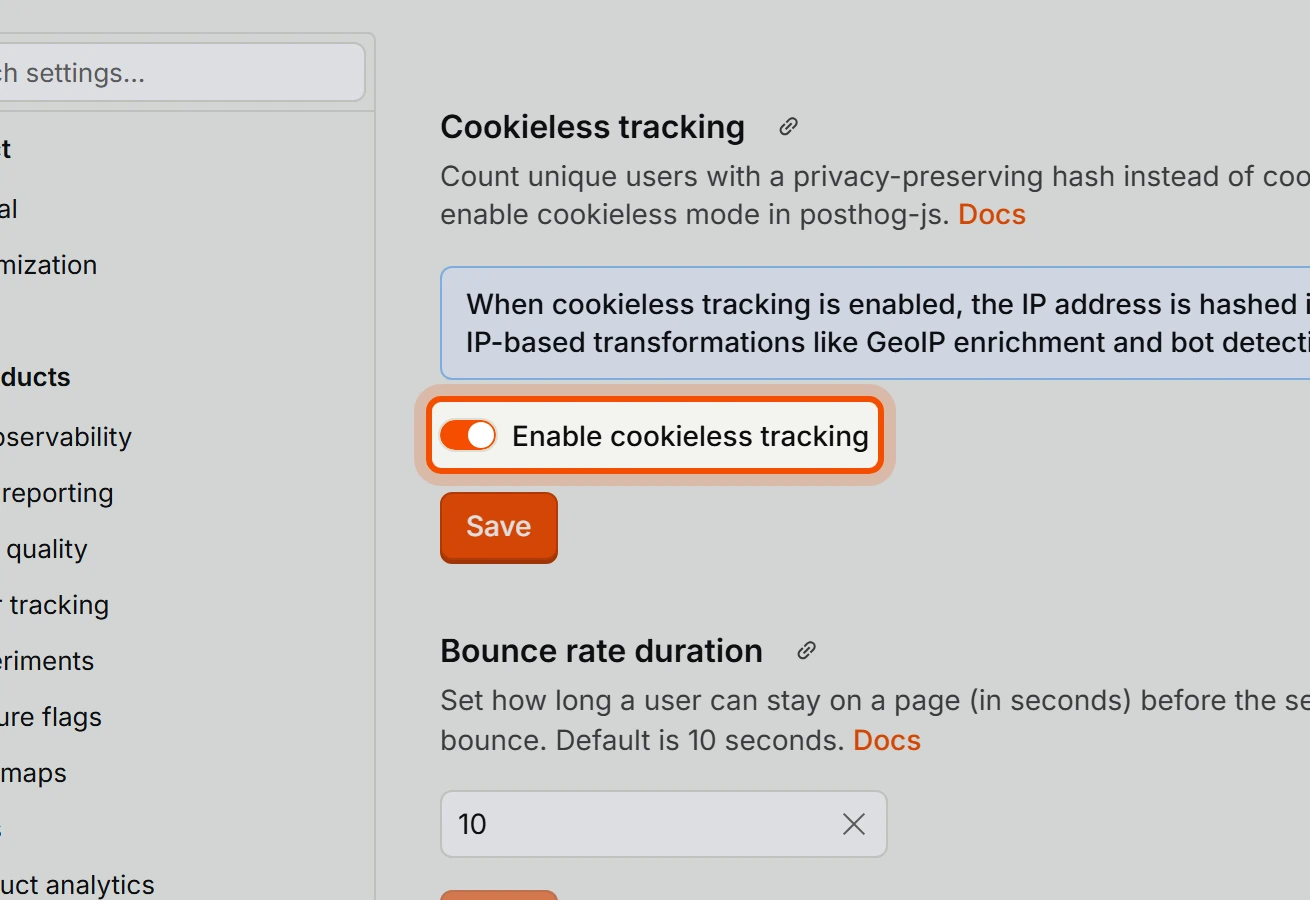
Click Save.
With cookieless tracking on, the IP address is hashed into the distinct ID and stripped before transformations run. GeoIP enrichment and bot detection won't enrich those events.
Add a cookie banner in Next.js (App Router)
Always load posthog-js. Don't gate it behind consent: PostHog then can't count visitors who ignore the banner. This is a frequent cause of sudden, large drops in event volume. Use the opt-in and opt-out calls to control capture instead.
defaults, cookieless_mode, opt_out_capturing_persistence_type and consent_persistence_name are version-sensitive. The code and options in this article match PostHog's docs as of the docs snapshot of 31 Oct 2026.
Install the JavaScript Web SDK.
``
bash npm install posthog-js``Create
instrumentation-client.jsin the root of your project and initialize PostHog withcookieless_mode: 'on_reject'.```js // instrumentation-client.js import posthog from "posthog-js";
posthog.init("<ph_project_token>", { api_host: "<ph_client_api_host>", defaults: '<ph_posthog_js_defaults>', cookieless_mode: 'on_reject' }) ```
From PostHog's tutorial Building a Next.js cookie consent banner (docs snapshot 31 Oct 2026).
Replace
<ph_project_token>and<ph_client_api_host>with your project token and instance address from your project settings. Replace<ph_posthog_js_defaults>with the latestdefaultsdate from PostHog's posthog-js docs.For
always, setcookieless_mode: 'always'instead and skip the banner steps for PostHog.For the opt-in banner, initialize like this instead, and call these functions from your banner or your consent tool:
```js posthog.init('<ph_project_token>', { api_host: '<ph_client_api_host>', defaults: '<ph_posthog_js_defaults>', opt_out_capturing_by_default: true, })
// Wire these into your CMP's consent-change callback function onConsentChange(hasConsented) { if (hasConsented) { posthog.opt_in_capturing() } else { posthog.opt_out_capturing() } } ```
From PostHog's docs page Controlling data collection (docs snapshot 31 Oct 2026).
Create
app/banner.jswith the banner. It shows only while the consent status ispending.```js // app/banner.js 'use client'; import { useEffect, useState } from "react"; import posthog from "posthog-js";
export function Banner() { const [consentGiven, setConsentGiven] = useState('');
useEffect(() => { // We want this to only run once the client loads // or else it causes a hydration error setConsentGiven(posthog.get_explicit_consent_status()); }, []);
const handleAcceptCookies = () => { posthog.opt_in_capturing(); setConsentGiven('granted'); };
const handleDeclineCookies = () => { posthog.opt_out_capturing(); setConsentGiven('denied'); };
return ( <div> {consentGiven === 'pending' && ( <div> <p> We use tracking cookies to understand how you use the product and help us improve it. Please accept cookies to help us improve. </p> <button type="button" onClick={handleAcceptCookies}>Accept cookies</button> <span> </span> <button type="button" onClick={handleDeclineCookies}>Decline cookies</button> </div> )} </div> ); } ```
From PostHog's tutorial Building a Next.js cookie consent banner (docs snapshot 31 Oct 2026).
Add the banner to
app/layout.js, insidebody.```js // app/layout.js import "./globals.css"; import { Banner } from "./banner";
export default function RootLayout({ children }) { return ( <html lang="en"> <body> {children} <Banner /> </body> </html> ); } ```
From PostHog's tutorial Building a Next.js cookie consent banner (docs snapshot 31 Oct 2026).
Check it works
This check is for on_reject.
Open your site in a private browser window. Don't click the banner yet.
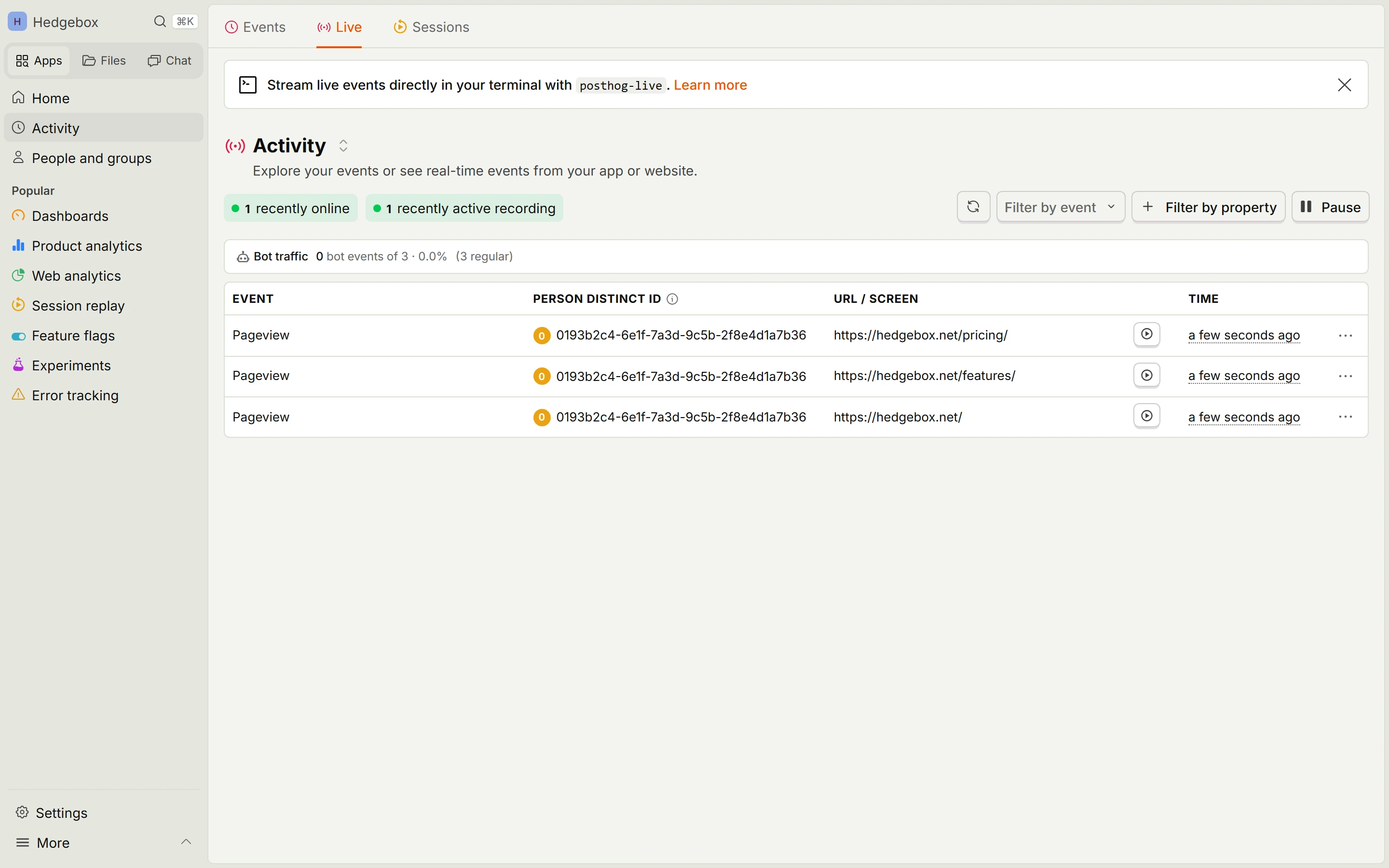
In PostHog, click Activity in the left navigation.
Open the Live tab. No events from your visit show up: nothing is captured until the visitor accepts or declines.
On your site, click "Accept cookies" and load a few pages.
Look at the Live tab again. Your pageviews appear at the top of the table.
Privacy settings in PostHog
Host your data in the EU
PostHog Cloud EU is hosted on servers in Frankfurt. PostHog recommends it for GDPR compliance. On Cloud EU, IP data capture is disabled by default for all new projects.
Discard IP addresses in a project
You need to be a project admin.
In Settings, open Privacy under Project, then under IP data capture configuration turn on Discard client IP data.
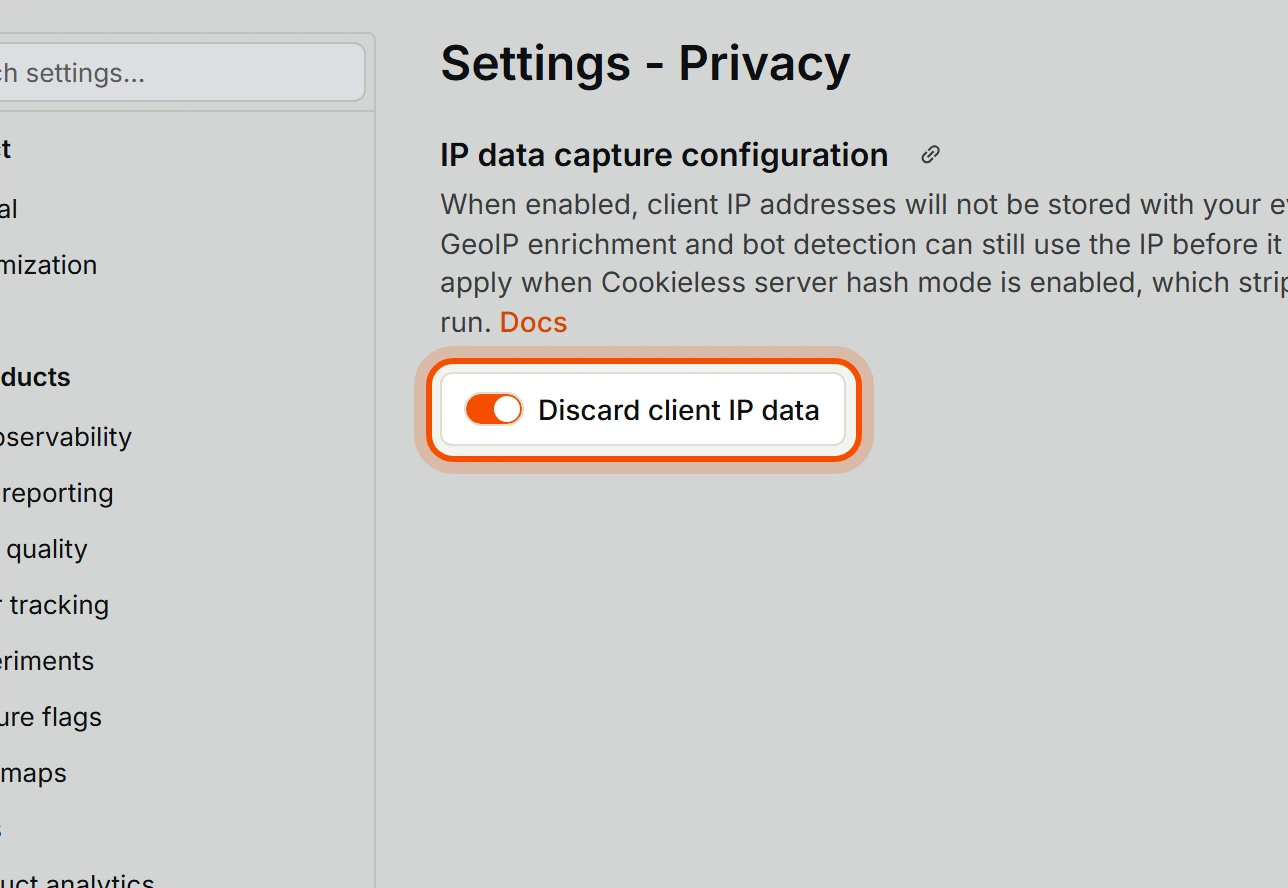
The setting saves straight away. Client IP addresses are no longer stored with your events.
Discard IP addresses by default for new projects
You need to be an organization admin or owner.
In Settings, open General under Organization, then under IP data capture default turn on Discard client IP data by default for new projects.
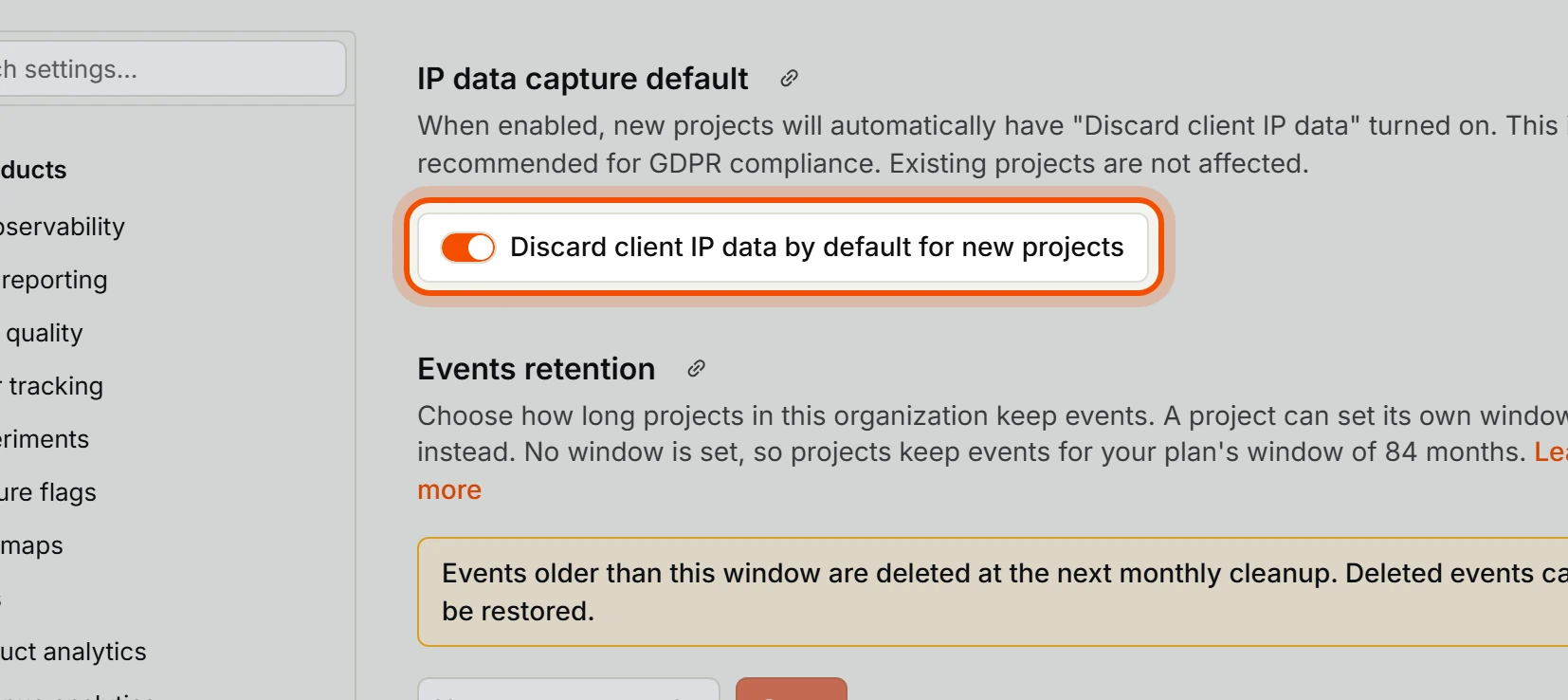
Existing projects are not affected.
Choose your AI settings
These are on the same Organization General page. You need to be an organization admin or owner.
Under Internal AI training, turn Enable AI training on anonymized data on or off.
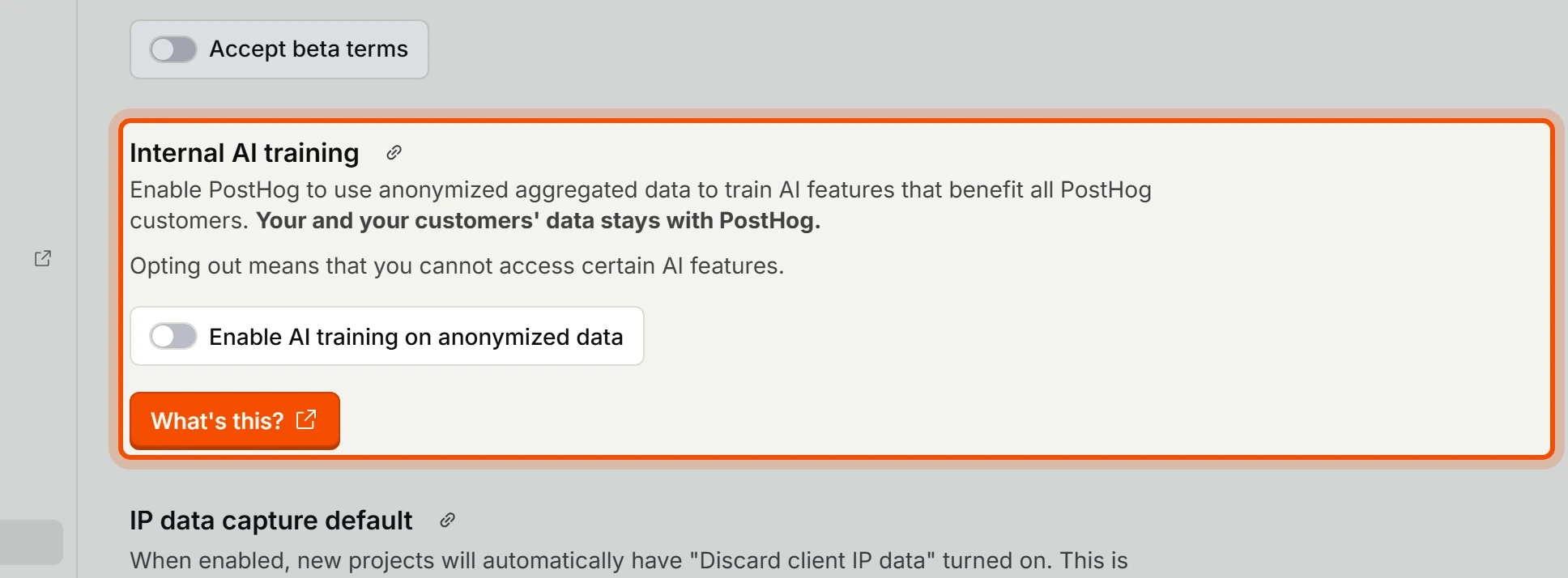
When it's on, PostHog can use anonymized aggregated data to train AI features for all PostHog customers. Opting out means that you cannot access certain AI features.
AI service providers is a different switch: Enable PostHog features that use third-party AI services. PostHog AI features use external AI services for data analysis. This can involve transfer of identifying user data, so we ask for your org-wide consent. Your data will not be used for training third-party models.
Common problems
Consent isn't remembered across subdomains. By default, consent is stored in localStorage, which belongs to one origin. On each subdomain, set opt_out_capturing_persistence_type: "cookie" and keep cross_subdomain_cookie on (it's on by default). Use the same project token on both, and the same consent_persistence_name if you set one. Show the banner only when posthog.get_explicit_consent_status() is "pending". This doesn't share a consent tool's own consent state.
The banner causes a hydration error. Read the consent status inside useEffect, as in the app/banner.js code above, so it only runs once the client loads.
Cookieless events are missing. Check that Enable cookieless tracking is turned on and saved in the project's Web analytics settings. If it's off, cookieless events are dropped at ingestion.
Events dropped sharply after adding a banner. posthog-js is probably gated behind consent. Always load it, and use the opt-in and opt-out calls to control capture.
User counts are higher, or there's no location data, in cookieless mode. This is expected. Visitors without consent get a new hash each day, so weekly and monthly unique users run higher. Two visitors on the same network and browser can share a hash. GeoIP and bot detection don't enrich cookieless events. Session replay and surveys are off until the visitor consents.