Find your way around PostHog
Knowing the four areas of the screen lets you reach any product, your saved work or PostHog AI in a couple of clicks.
PostHog has a lot of products, but the screen only has a few parts. Learn them once and you can get anywhere.
The screen at a glance
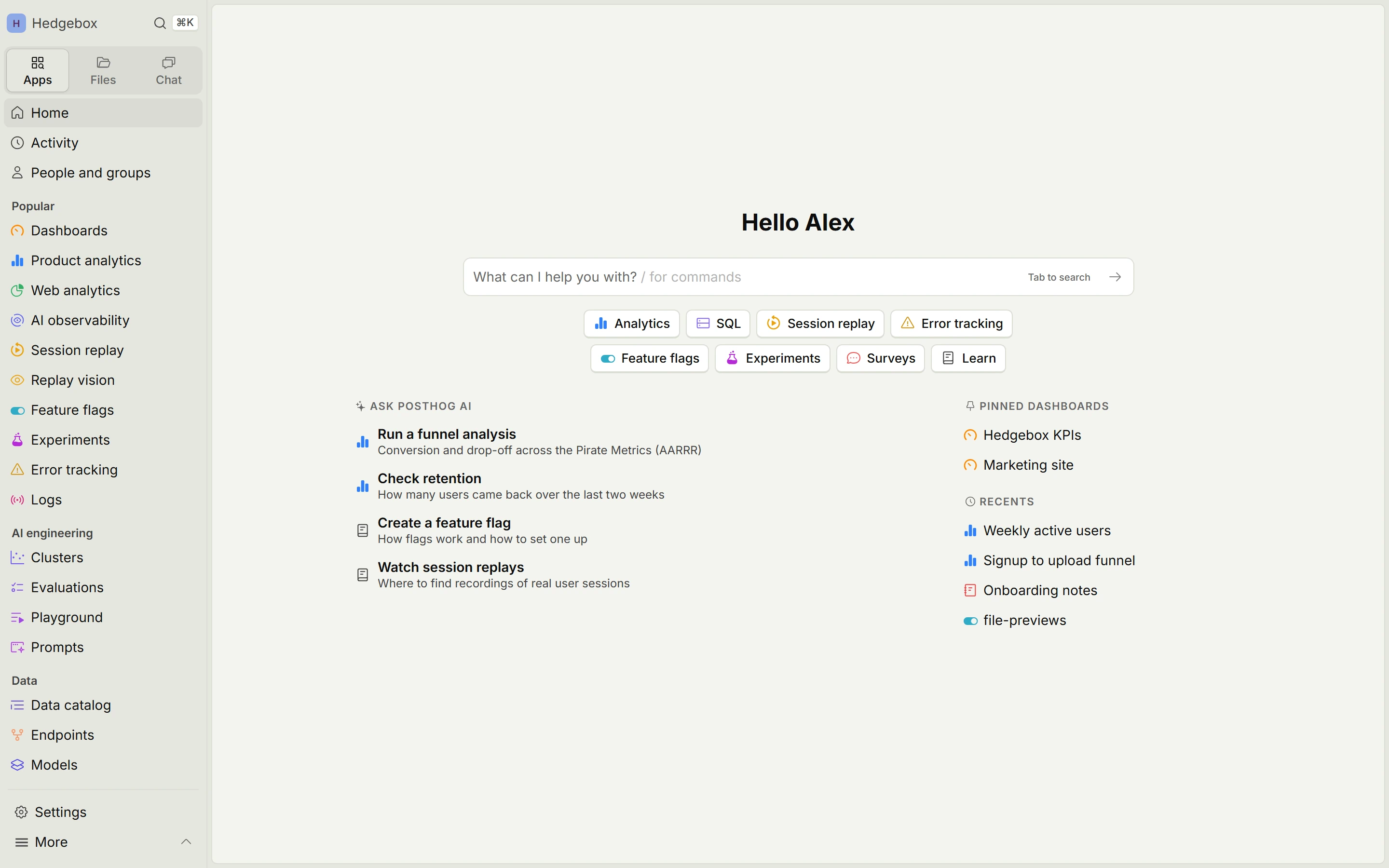
Top left: the account menu, showing your project name, and the magnifying glass for search.
Under it: the picker with three tabs, Apps, Files and Chat.
Below the picker: whatever the selected tab lists, such as all your products.
Bottom left: Settings, and More for help, docs and system pages.
Right: the page you're working on. Home opens a launchpad that asks "What can I help you with?"
Switch between Apps, Files and Chat
Find the picker under the account menu, with the tabs Apps, Files and Chat.
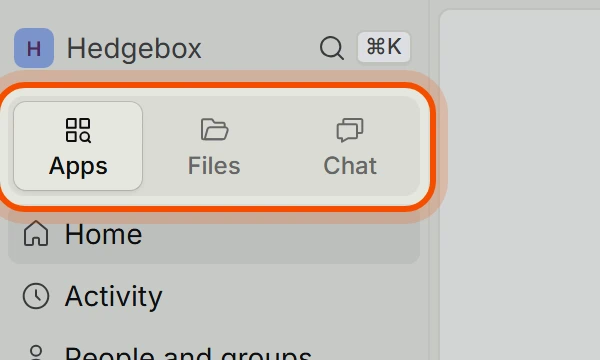
Click a tab to change what the NavBar lists. Apps is selected when you start.
Press ⌘B (Ctrl+B on Windows) or [ when you need more room. The NavBar shrinks to a narrow strip of icons, with your starred products still there. Press it again to bring the full NavBar back.
Open any product
From Apps
Click Apps in the picker.
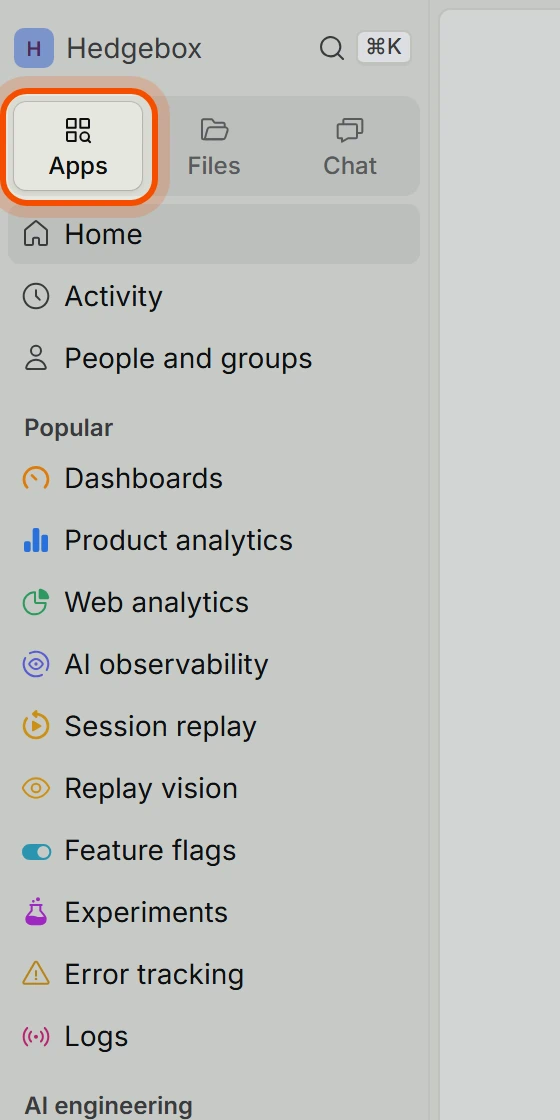
Click the product you want, for example Session replay under Popular. Hover over a product first if you want a short description of what it does.
With search
Click the magnifying glass at the top of the NavBar, or press ⌘K (Ctrl+K on Windows).
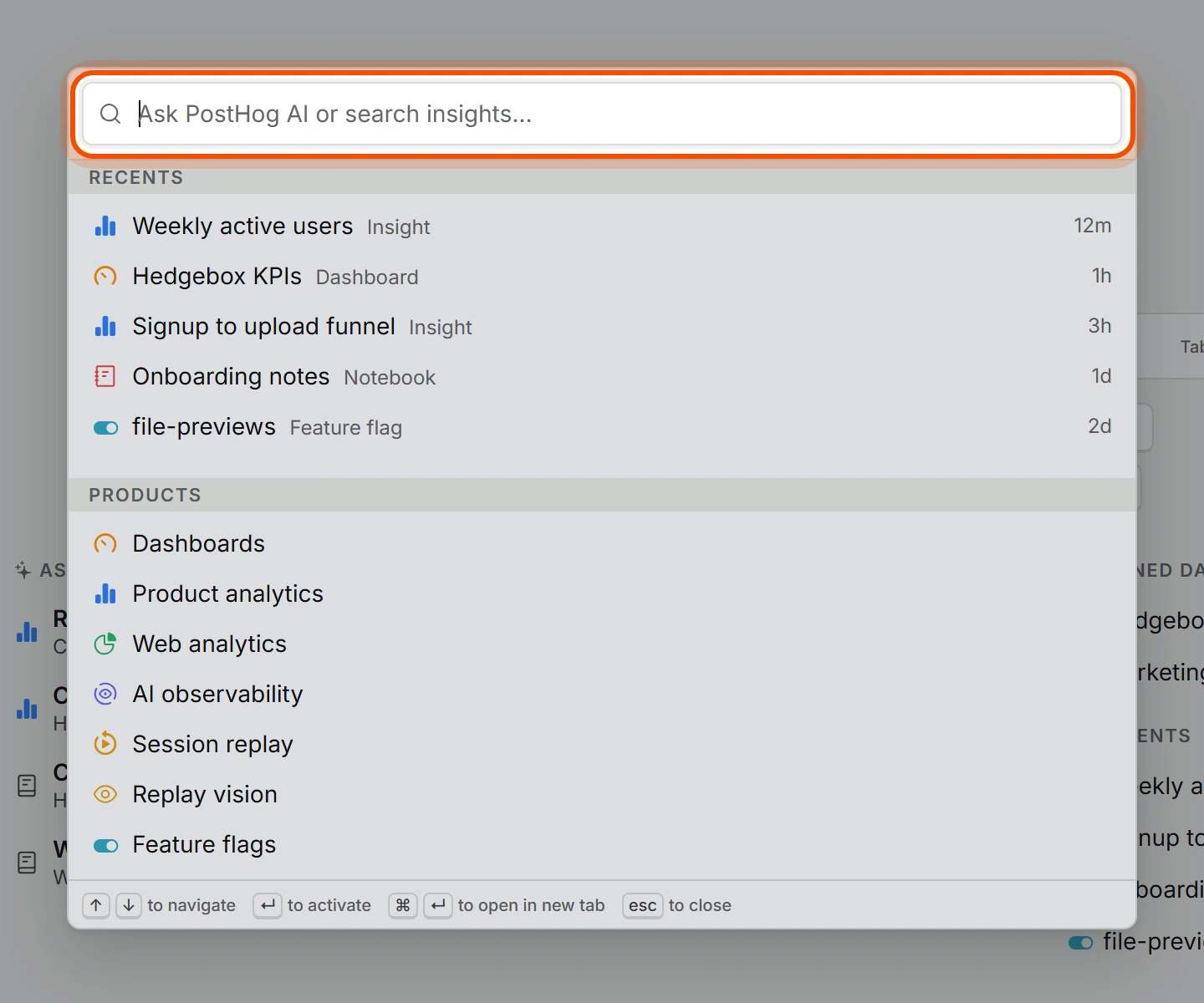
Type what you're looking for, for example replay.
Click Session replay in the results.
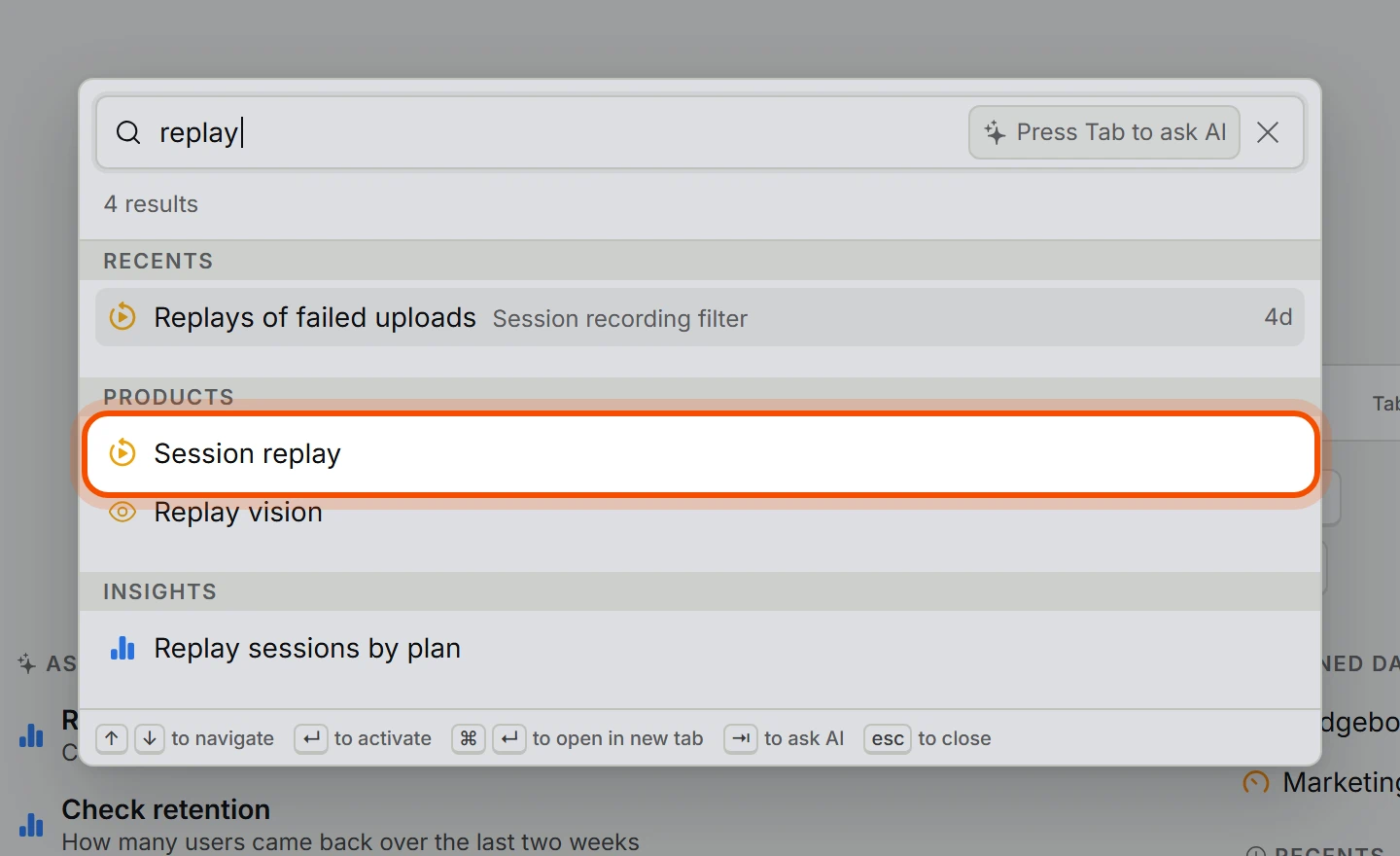
Search also finds insights, dashboards, feature flags, persons, settings, and things you've opened or starred. To ask PostHog AI instead, press Tab while you type.
Star the products you use most
In Apps, hover over the product you want to keep handy, such as Session replay. A star appears next to it.
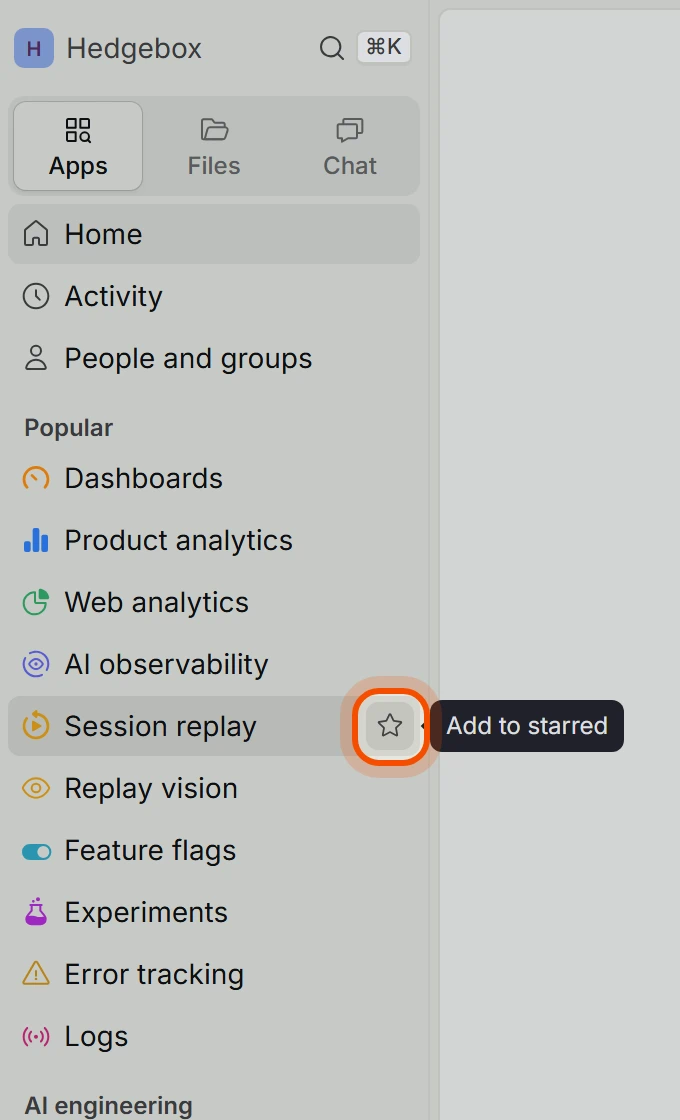
Click the star. You'll see "Added to starred".
Find your product in the new Starred section at the top of Apps. The full list now folds under See all products.
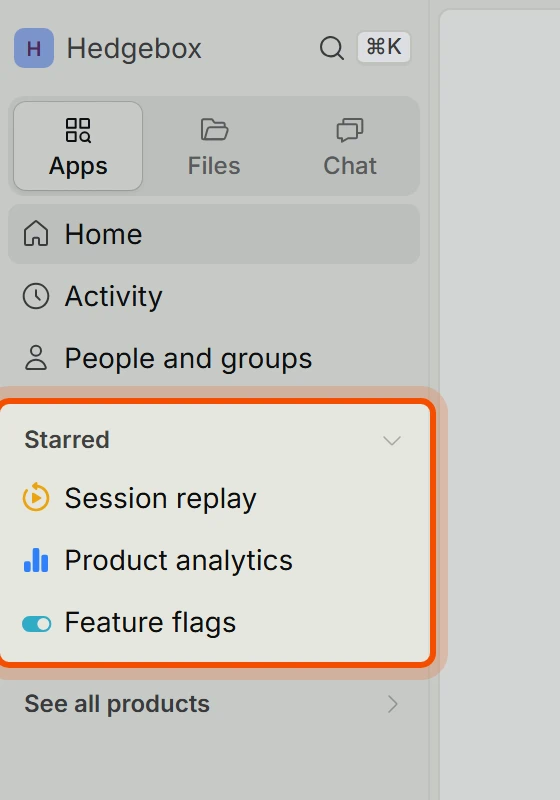
To pick several products at once, hover over Home, click the gear (Customize sidebar), choose your products and click Save.
Drag starred products to change their order.
To unstar a product, click its filled star, then click Remove.
You can star files too: right-click a file or folder in Files and choose Add to starred.
Find your saved work
Click Files in the picker.
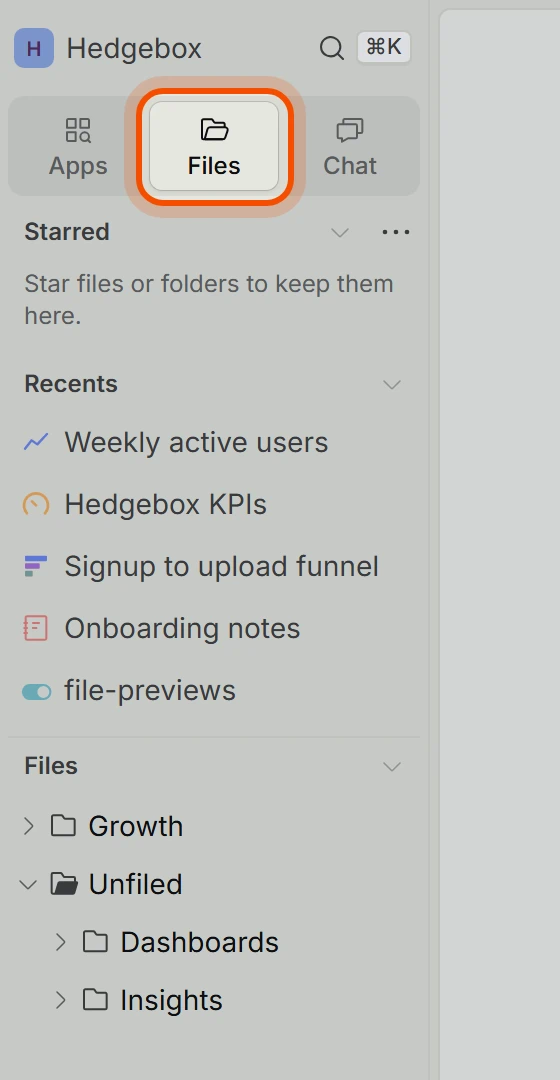
Recents lists what you opened lately. Starred keeps the files and folders you starred. Anything you haven't put in a folder lives in Unfiled.
Open Unfiled, then a subfolder such as Dashboards or Insights, to find what you made.
Right-click a folder to create something new in it (a folder, dashboard, insight, feature flag, experiment, survey or cohort), move it or rename it.
Ask PostHog AI instead of clicking
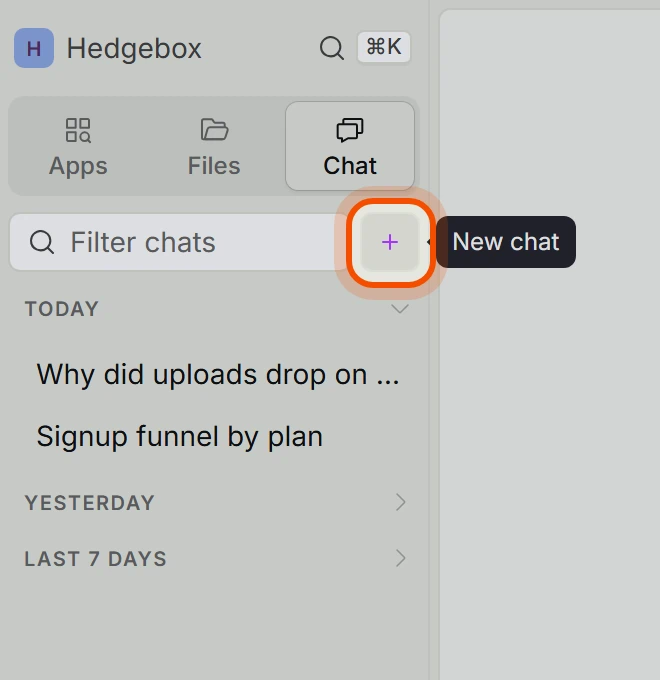
Click Chat in the picker.
Click New chat (the purple + at the top of the list).
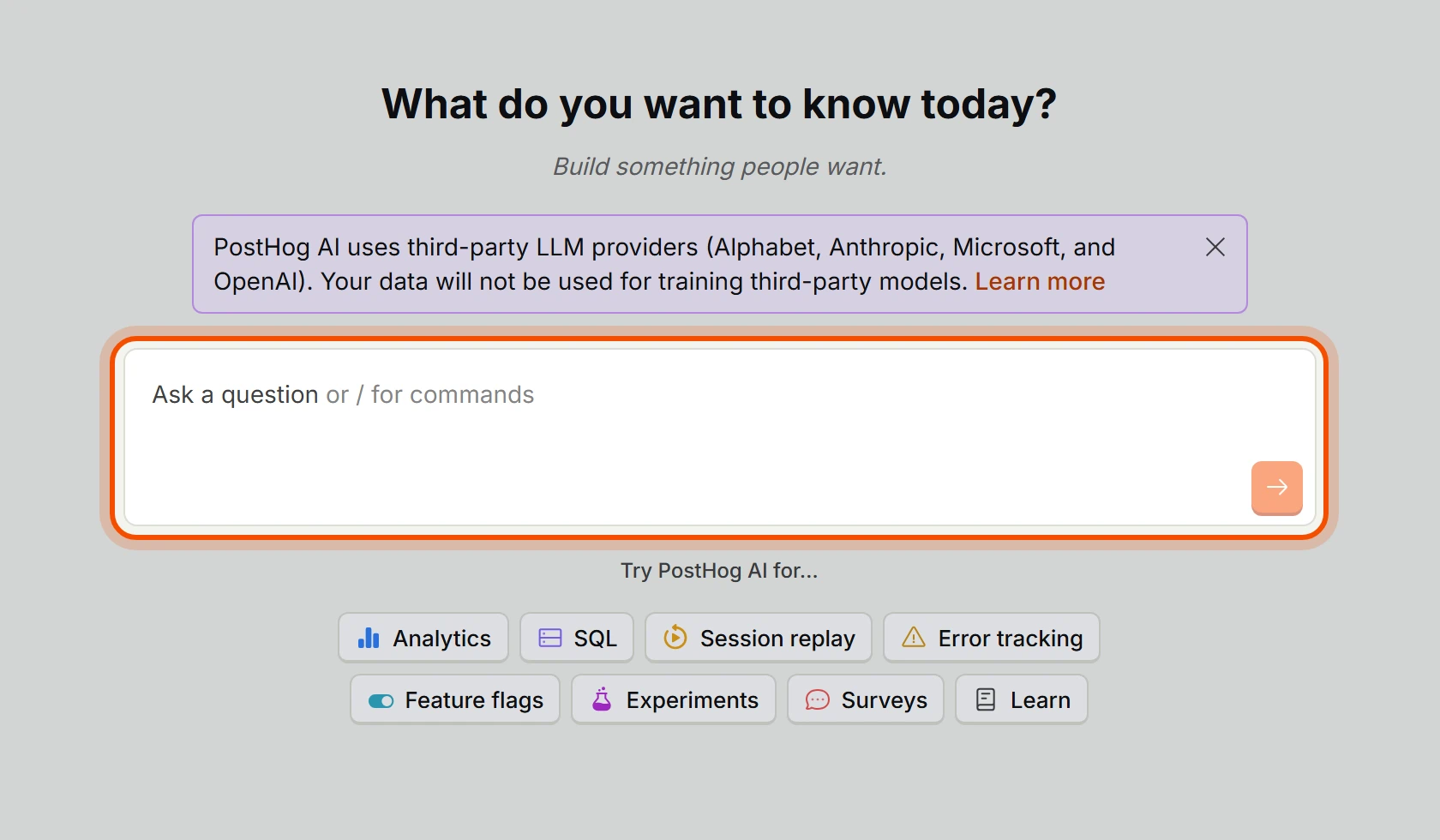
Type your question in the Ask a question box.
Your past conversations are listed in the Chat tab, grouped by Today, Yesterday, Last 7 days and so on. To find one, type in Filter chats.
Not sure what to ask? Pick a topic badge under "Try PostHog AI for…", such as Analytics or Feature flags, to see example questions. Home also suggests questions such as "Run a funnel analysis" and "Check retention".
I want to… go to…
See your key numbers → Apps › Dashboards
Watch what users did → Apps › Session replay
Turn a feature on for some users → Apps › Feature flags
Write SQL → Apps › SQL editor
Find something you saved → Files › Recents or Unfiled
Reopen an AI conversation → Chat
Change project settings → Settings (bottom of the NavBar)
Get help or read docs → More › Docs or Support
Find anything fast → ⌘K
Common problems
A product isn't in Apps. Some products only show when they're enabled for your organization. If a product is greyed out, you don't have access to it: hover over it to see why. You can also press ⌘K and search for it by name.
PostHog AI asks for approval before it answers. If you're an organization admin, click "I allow AI analysis in this organization" and confirm in the dialog that follows. If you're not an admin, click Request access. PostHog notifies your organization's admins.
There's no Starred section in Apps. It only appears once you've starred something. Hover over a product and click its star.
You can't find something you made. Open Files and look in Unfiled, where things you haven't put in a folder are kept. Or press ⌘K and search for its name.
The NavBar has shrunk to a strip of icons. You've collapsed it, probably by pressing ⌘B or [. Press ⌘B (Ctrl+B on Windows) again to bring the full NavBar back.
Watch it
Prefer to watch? The video Find your way around PostHog (4:19) covers the same ground.
0:00 The layout
0:34 Find any product
1:16 Keep favourites close
1:53 Your work lives in Files
2:26 Where did it go?
3:26 Ask instead of click