Session replay not recording? A checklist for web and mobile
Most missing recordings come down to one setting, one recording condition or a blocker, so check them in this order.
Recording is turned on for the project.
Recording conditions match the sessions you expect.
The sample rate isn't too low.
The minimum duration isn't dropping short sessions.
The URL blocklist doesn't cover the page.
No ad blocker or content security policy blocks the script.
Mobile apps use the conditions on the Mobile tab.
Check that recording is on
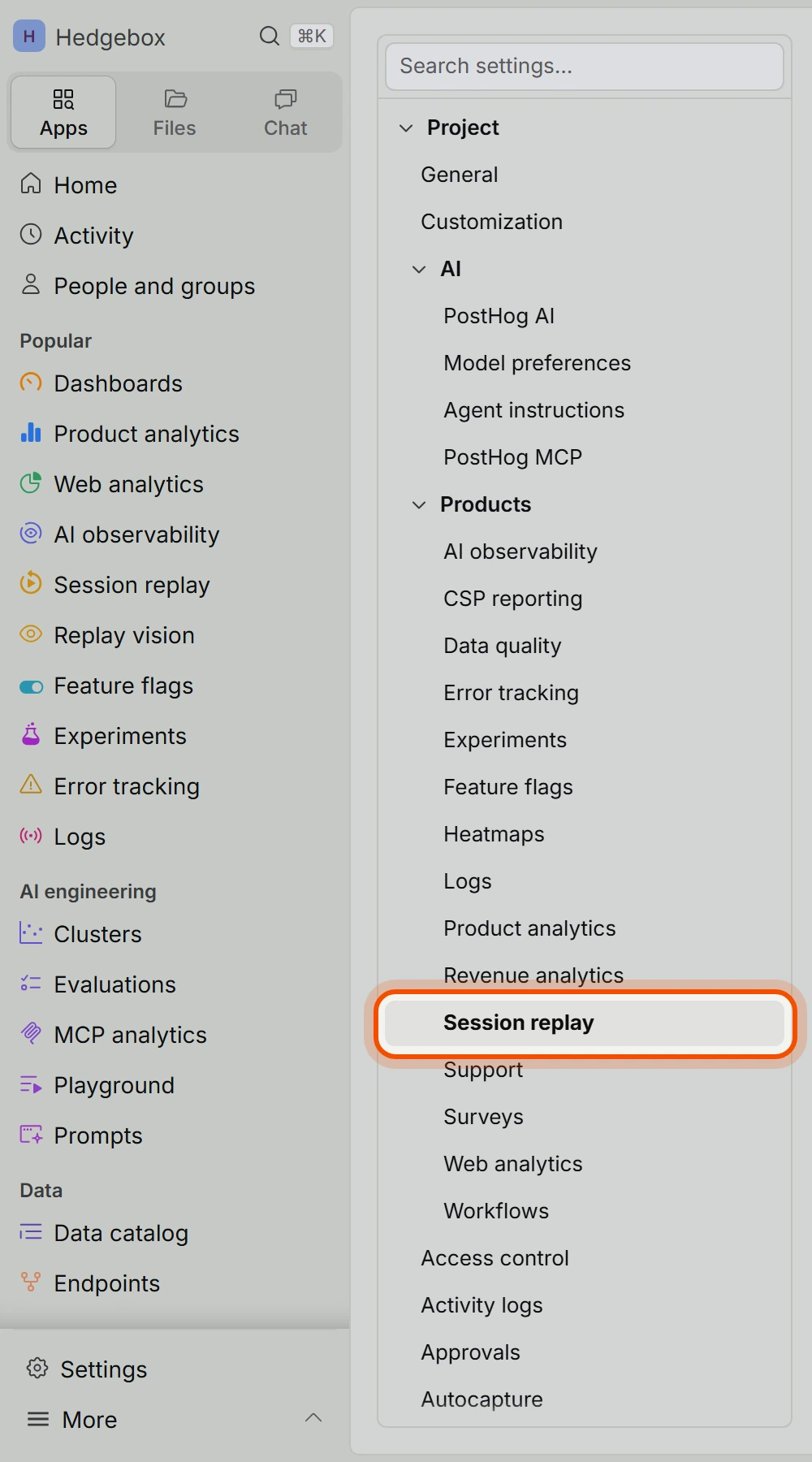
Click Settings at the bottom of the left navigation.
In the settings menu, under Project → Products, click Session replay.
Turn on Record user sessions at the top of the page.
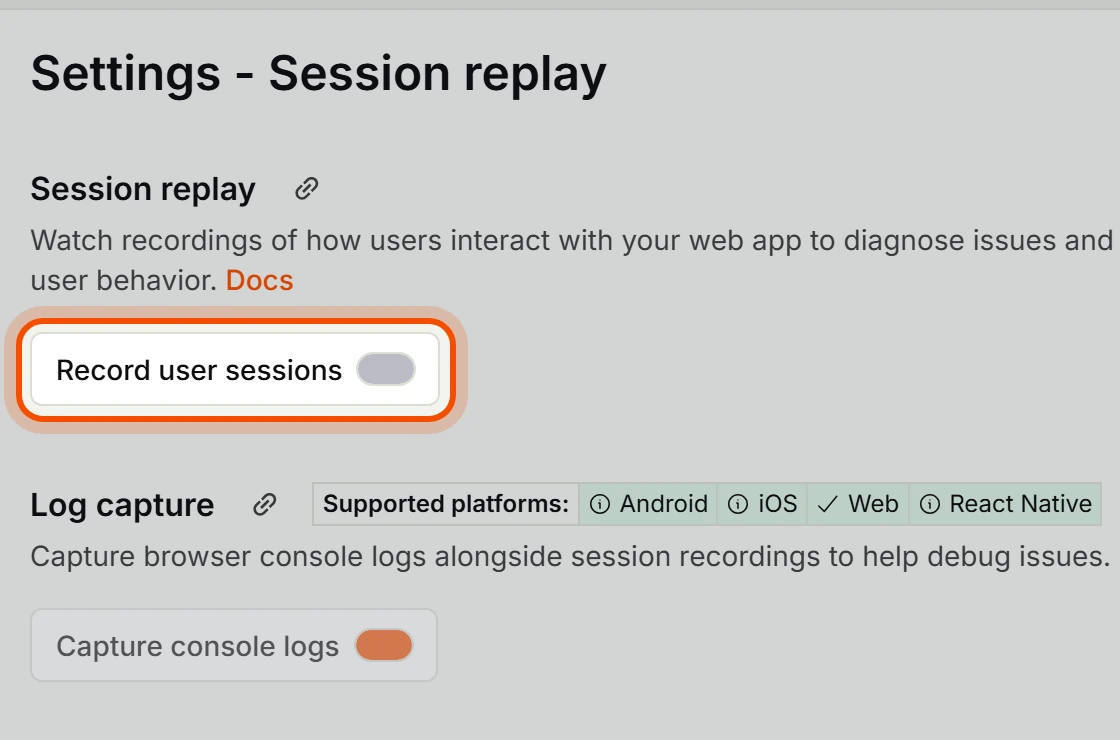
When this switch is off, nothing is recorded. Only project admins can change it.
You can also open these settings with the Settings button at the top of the Session replay page. When that page has nothing to show yet, it can show an Enable session recording button.
Check the recording conditions
When recording is off, Recording conditions shows "Recording is disabled. Enable it in General settings." There is no General section for this. The switch is Record user sessions, at the top of this same page.
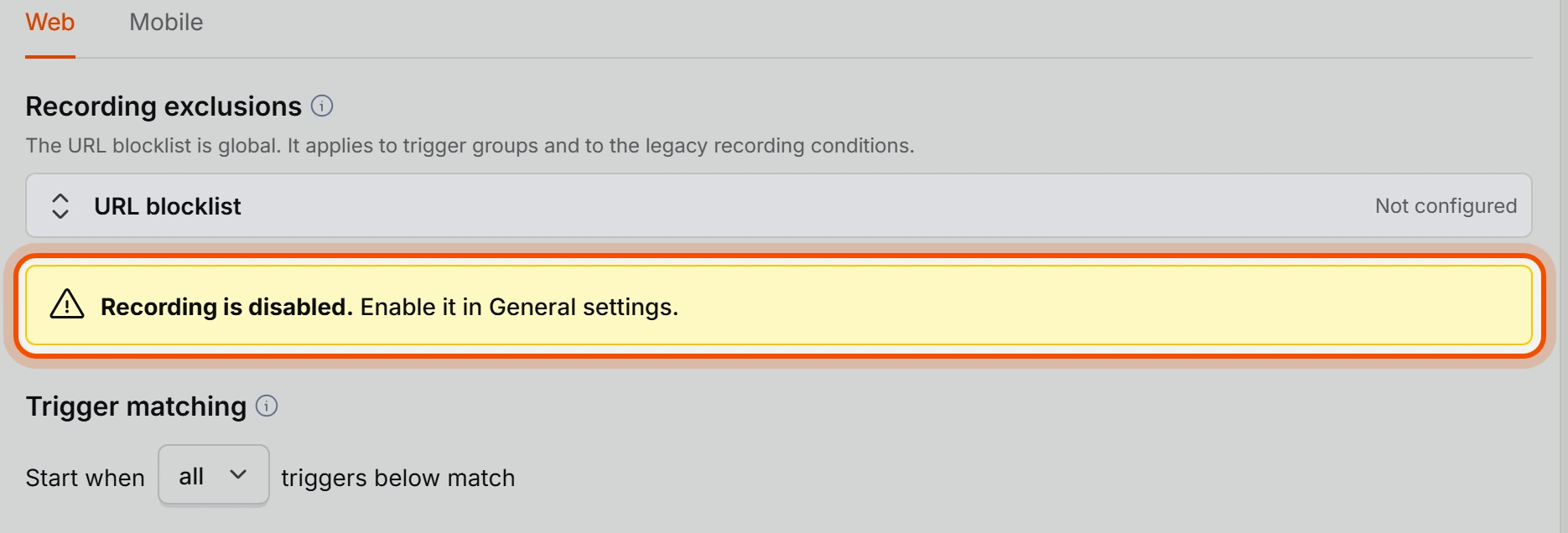
In Recording conditions, click the Web tab.
Check Trigger matching. It reads "Start when all/any triggers below match".
all: every trigger must match. This is the default.
any: one or more triggers must match.
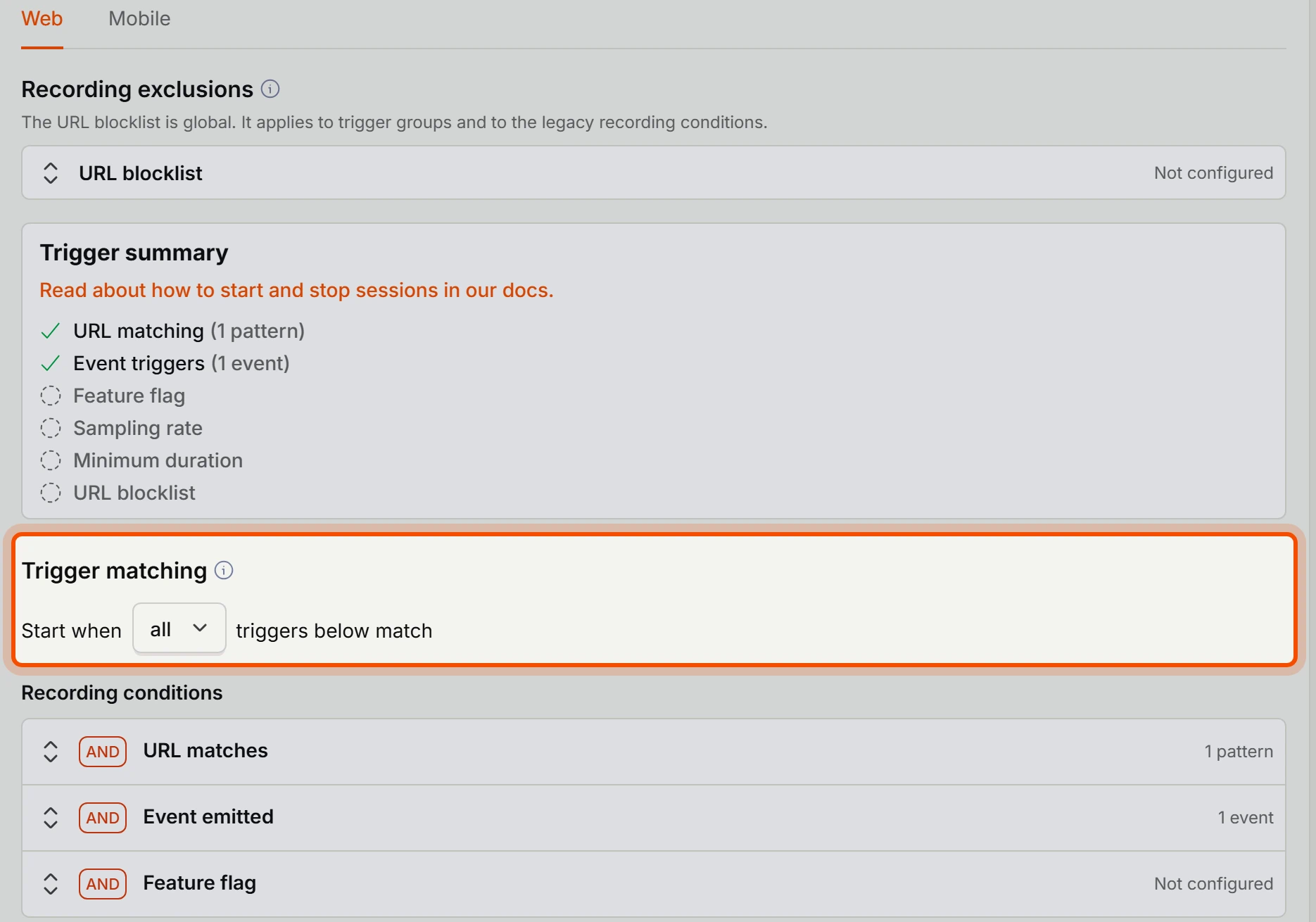
Check each trigger you set:
URL matches: recording only starts when the user visits a page that matches.
Event emitted: recording starts when a PostHog event is queued.
Feature flag: PostHog only records when this flag is enabled. This flag is shared across web and mobile.
URL patterns match the full URL. A path on its own, like /files/, never matches.
With no triggers, the summary says "No triggers — all sessions recorded".
Check the sample rate
Open the Sampling panel.
Set Sample rate to a number from 0 to 100. At 100, every session is recorded. At 50, roughly half are.
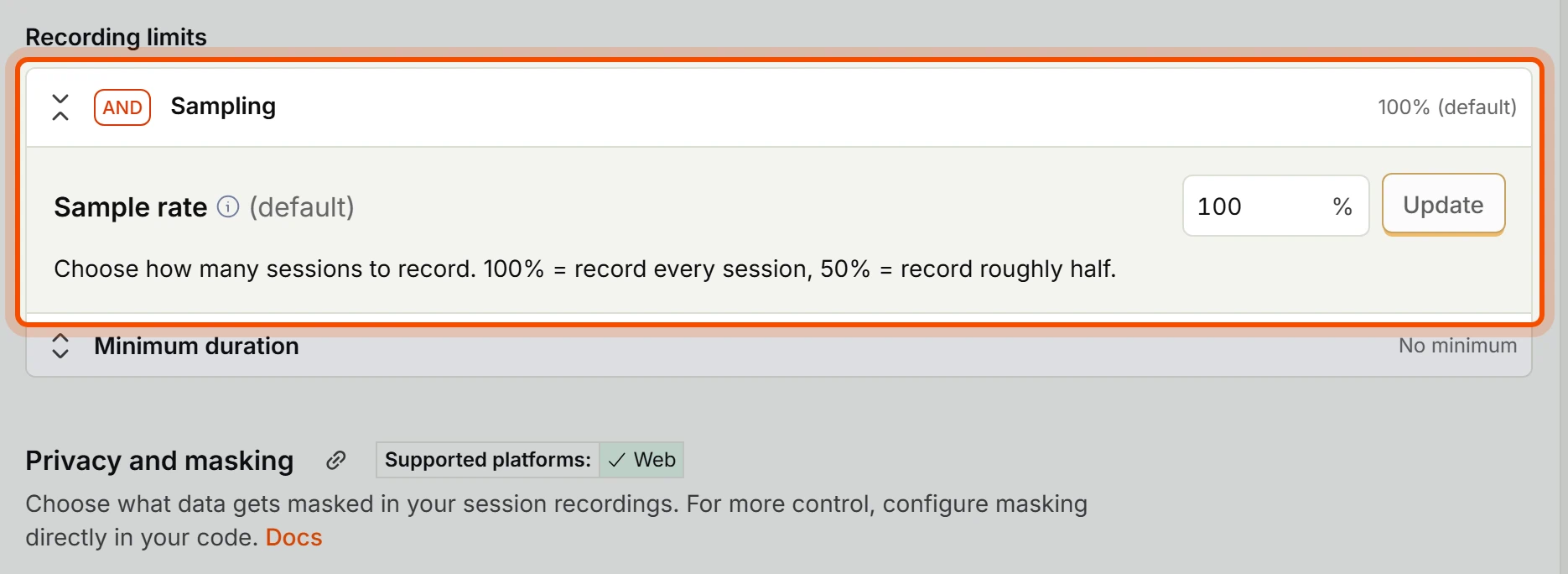
Click Update.
Sampling, Minimum duration and Feature flag depend on your plan. If you see an upgrade prompt where these controls should be, your plan doesn't include them.
Check the minimum duration
Open the Minimum duration panel.
Check Duration threshold. Sessions shorter than this aren't kept. You can choose no minimum, or 1, 2, 5, 10, 15 or 30 seconds. The list shows only the numbers; they're seconds.
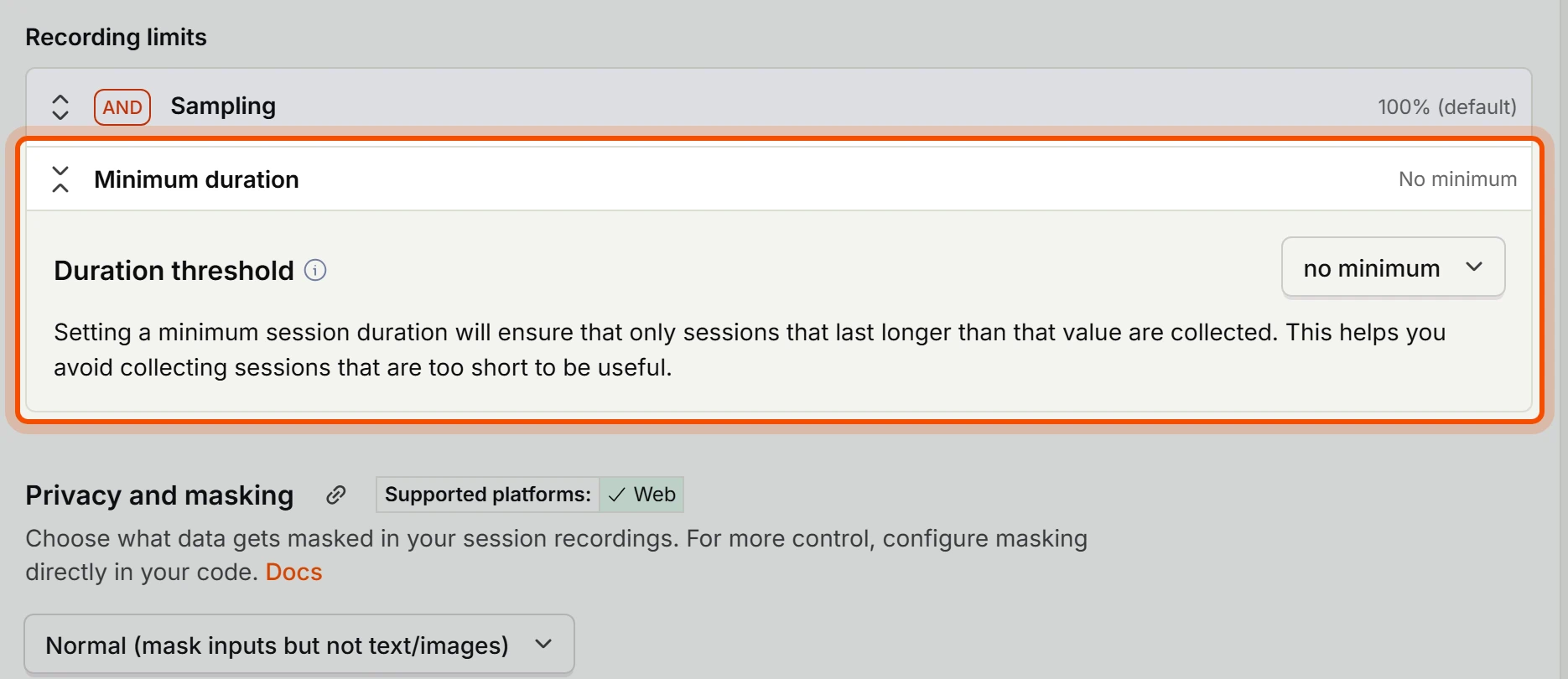
For traditional web apps, the minimum duration is best effort, because the JavaScript SDK queues data in memory.
Check the URL blocklist
Under Recording exclusions, open URL blocklist.
Check that no entry matches a page you want recorded.
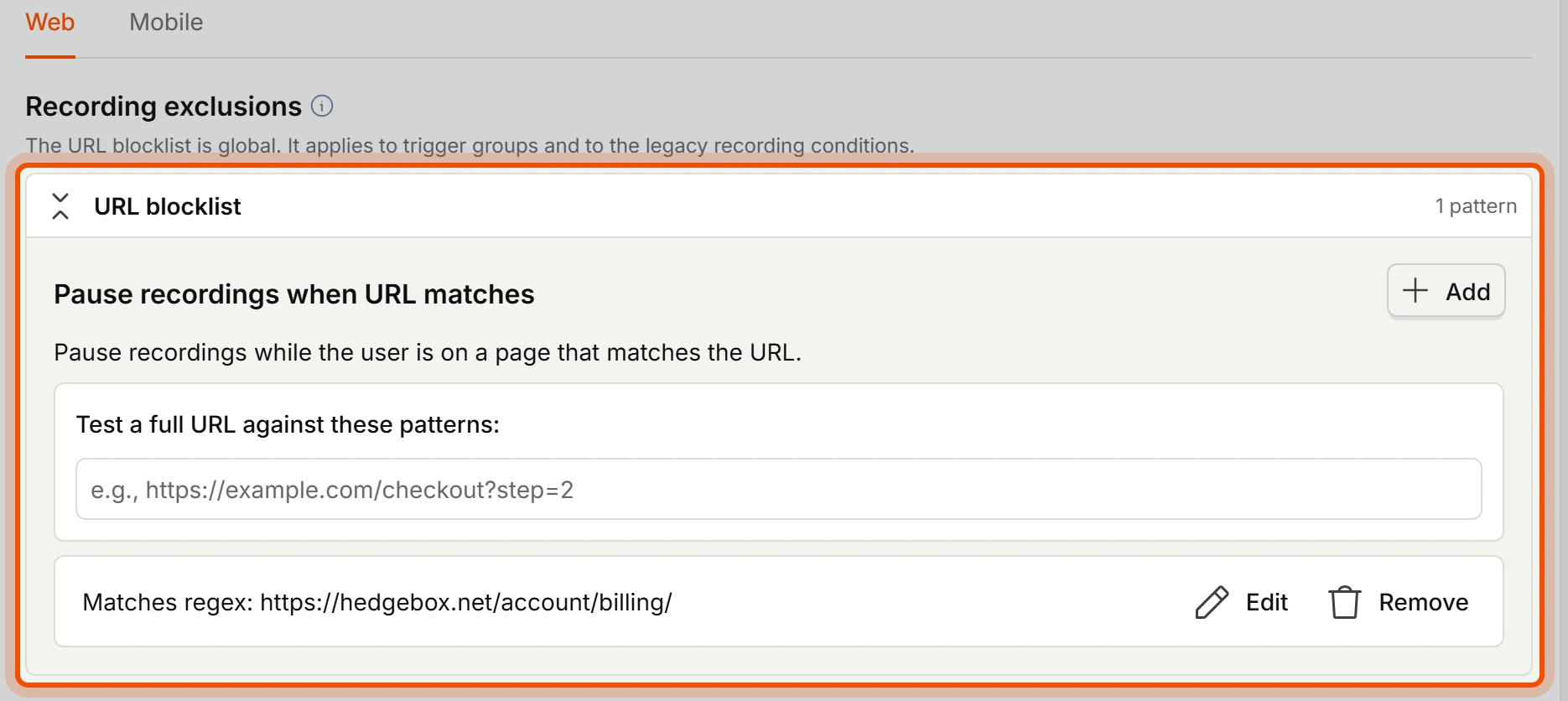
Recording pauses while the user is on a page that matches the blocklist. The blocklist applies to all recording conditions.
Check for ad blockers
If a browser ad blocker or your site's content security policy blocks the recording script, the session isn't recorded. Make sure your content security policy doesn't block it. To avoid tracking blockers, PostHog recommends sending data through a reverse proxy.
Check mobile apps
In Recording conditions, click the Mobile tab.
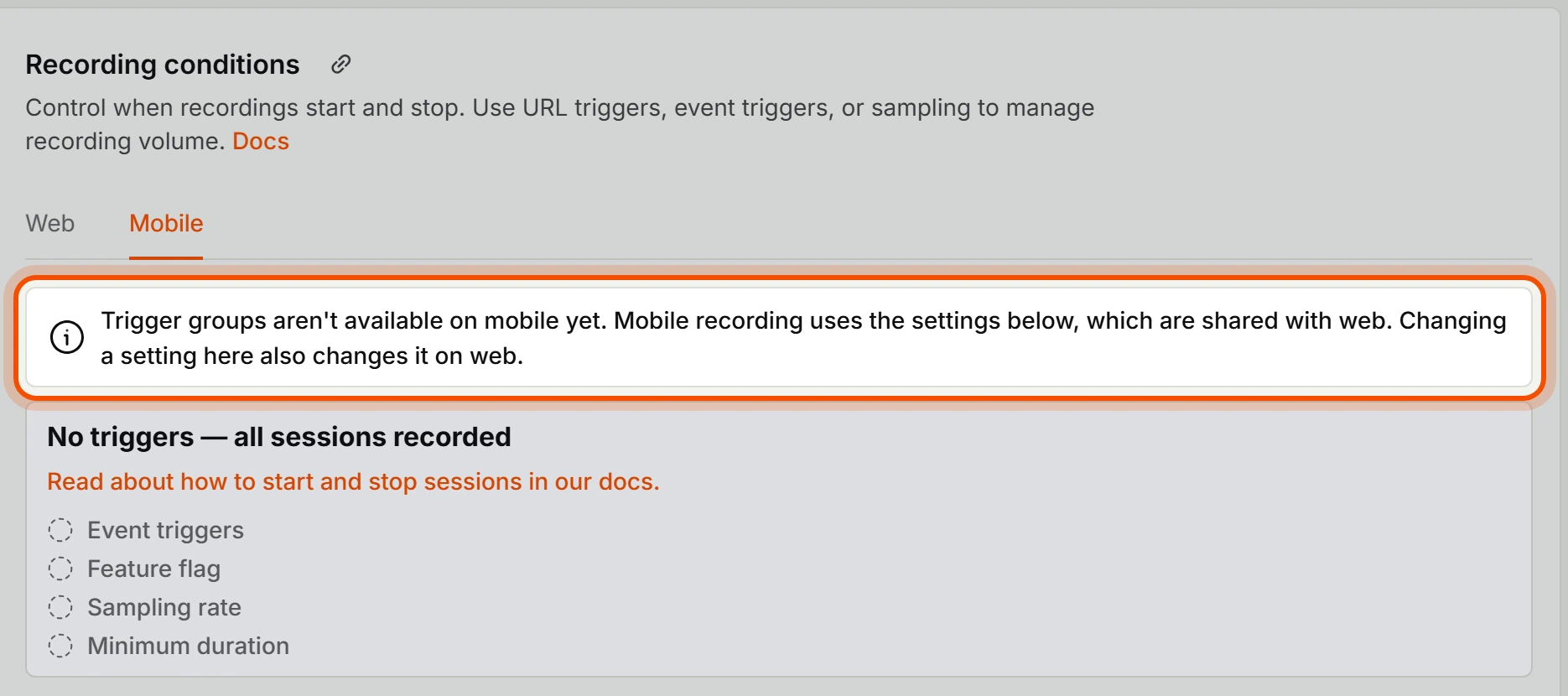
Mobile recording uses the settings on the Mobile tab. They're shared with web, so changing one also changes it on web.
Mobile supports only "all" trigger matching.
Mobile has no URL triggers and no URL blocklist. It uses only Event emitted, Feature flag, Sampling and Minimum duration.
Each mobile condition needs a minimum SDK version.
Know what masking does
Masking doesn't stop a recording. It only hides content in it.
In Privacy and masking, open the masking list.
Choose a level:
Total privacy (mask all text/images): masks all text and images.
Normal (mask inputs but not text/images): masks inputs. This is the default.
Free love (mask only passwords): masks only passwords.
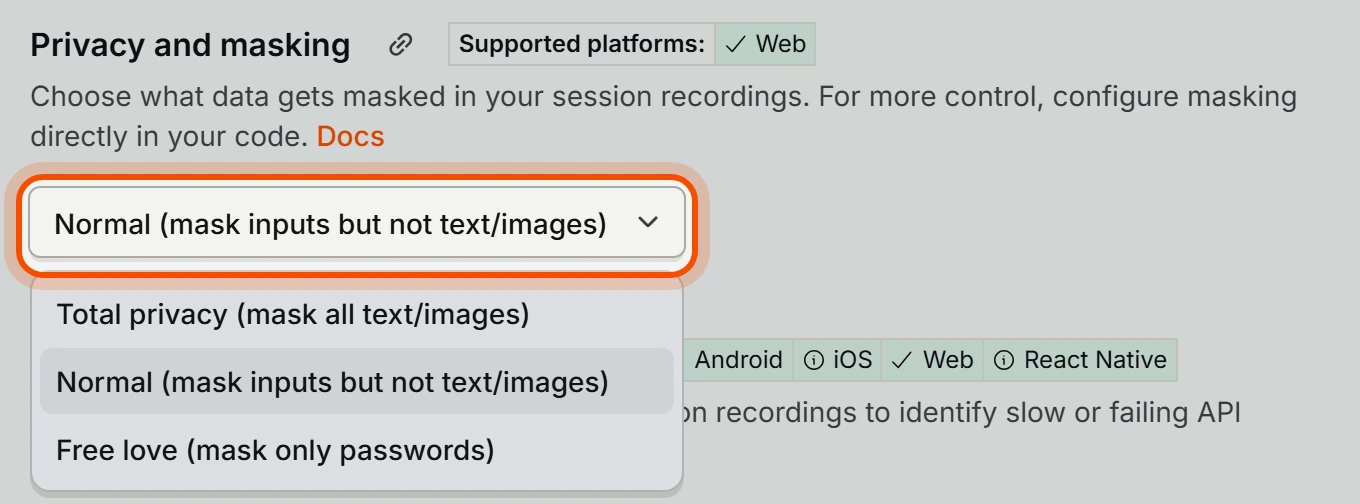
This is a web setting. For finer control, configure masking in code.
Common problems
You can't turn on the recording switch. Only project admins can change Record user sessions. Ask a project admin.
Recordings stopped and the settings look right. PostHog stops recording when the project reaches its recordings billing limit.
An error says every session is recorded. Recording conditions shows this error: "100% sampling rate with "any" matching records every session. To fix this, either lower the sample rate or switch to "all" matching." Lower Sample rate in Sampling, or set Trigger matching to all.
Very short sessions are missing. Check the Duration threshold. Sessions shorter than it aren't kept. Set it to no minimum to keep them.
You see an upgrade prompt instead of a setting. Sampling, Minimum duration and Feature flag depend on your plan. Your plan doesn't include that setting.
Watch it
Prefer to watch? The video Record only the sessions you need (4:10) covers the same ground.
0:00 Where the settings live
0:49 Record only what matters
1:47 Sampling, minimum duration and the URL blocklist
2:50 Privacy and masking
3:19 Why wasn't this session recorded?