Finding the recordings that matter
Go straight from a funnel drop-off to the few sessions that explain it, instead of watching hours of replays.
In your funnel, hover over the grey area above the step where people leave. The tooltip shows the Dropped off count.
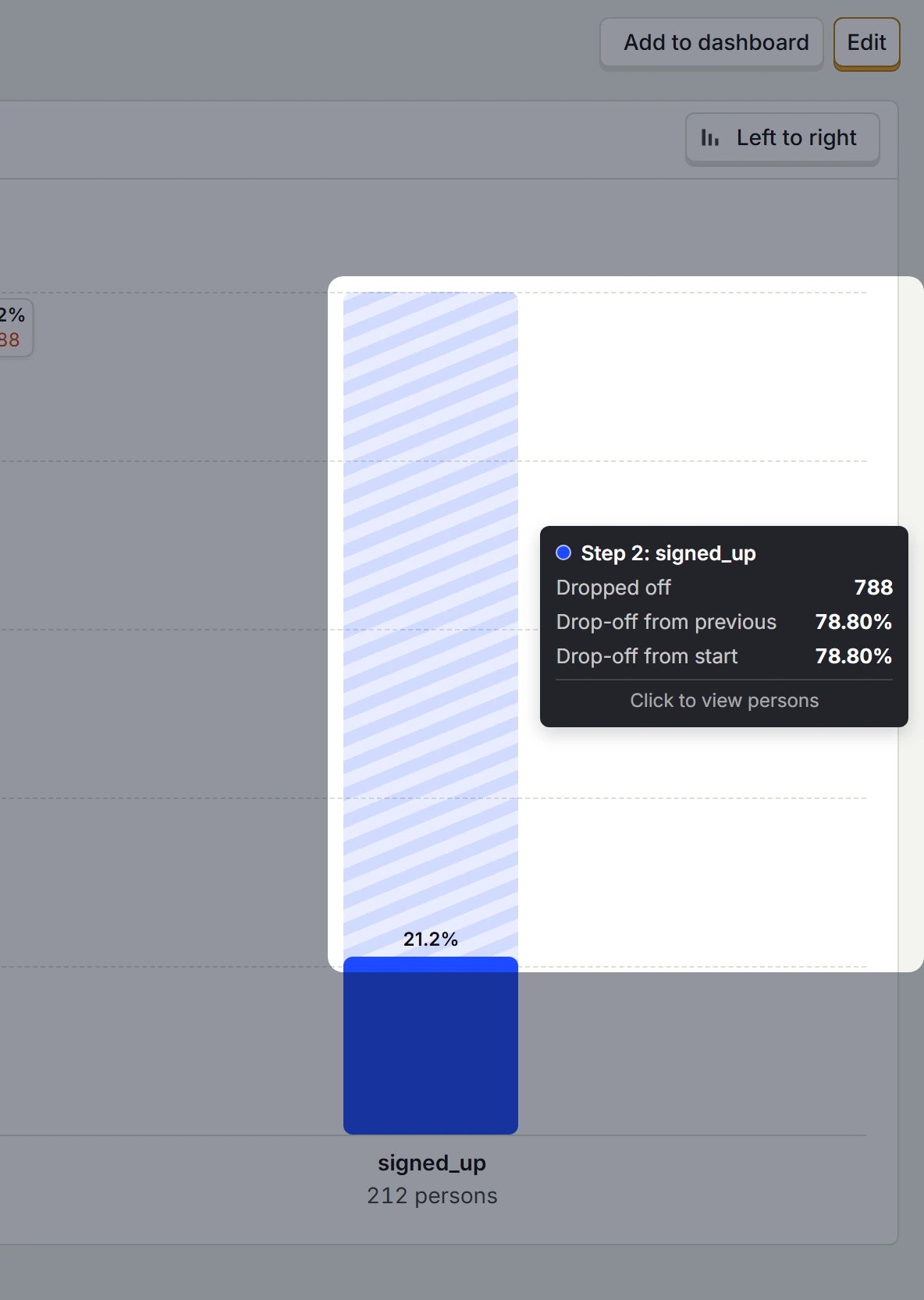
Hover over the grey area, not the bar. The bar shows the people who converted.
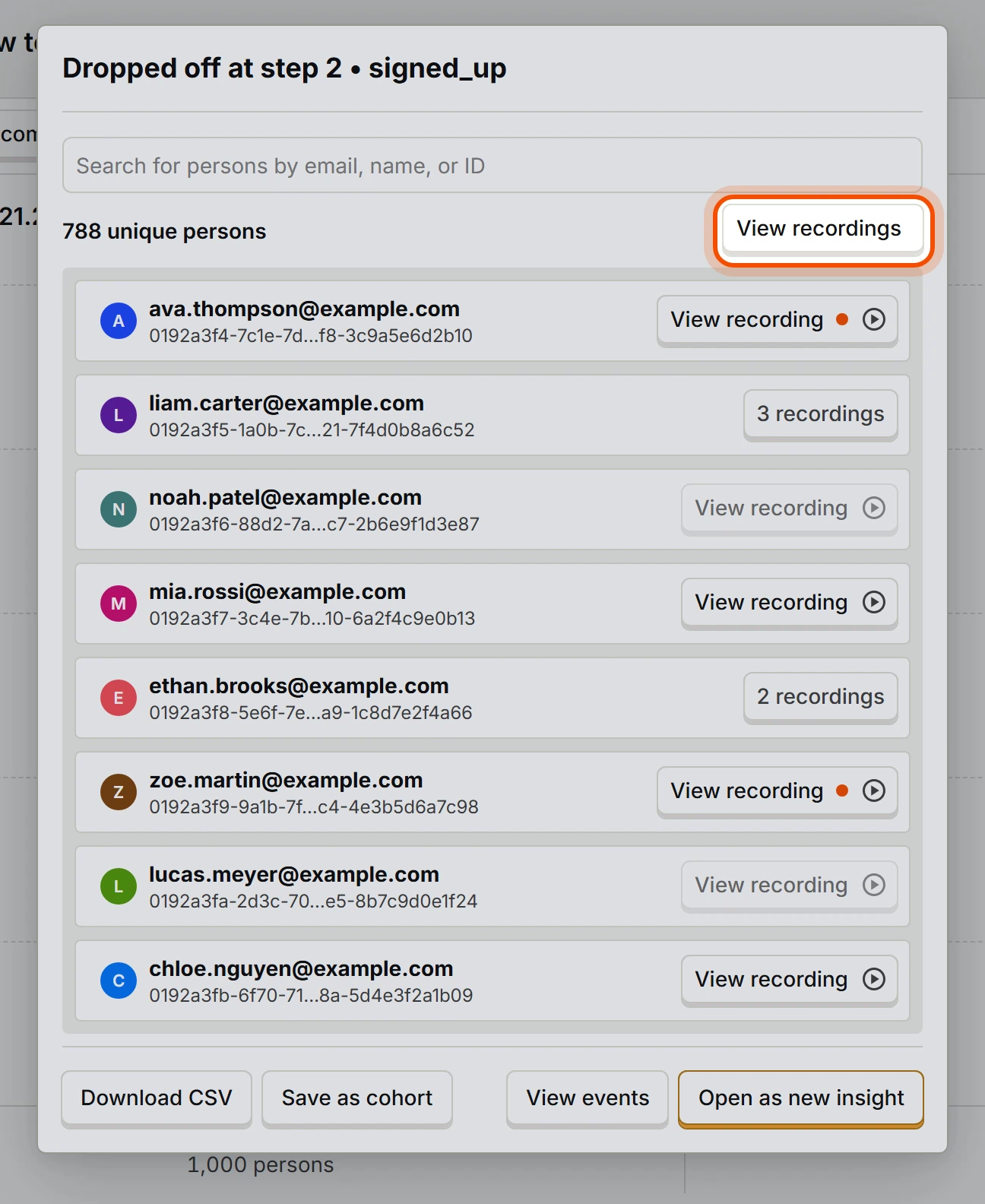
Click the grey area. A list opens with the people who dropped off at that step.
Click View recordings. Session replay opens in a new tab.
In the new tab, click a recording in the list.
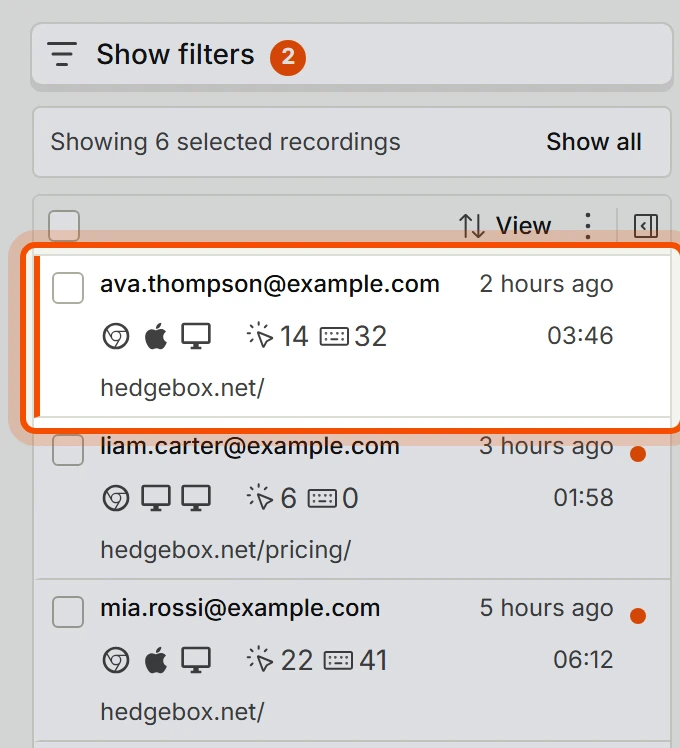
The list shows only the sessions of the people who dropped off, in the funnel's date range. The bar above it says "Showing … selected recordings".
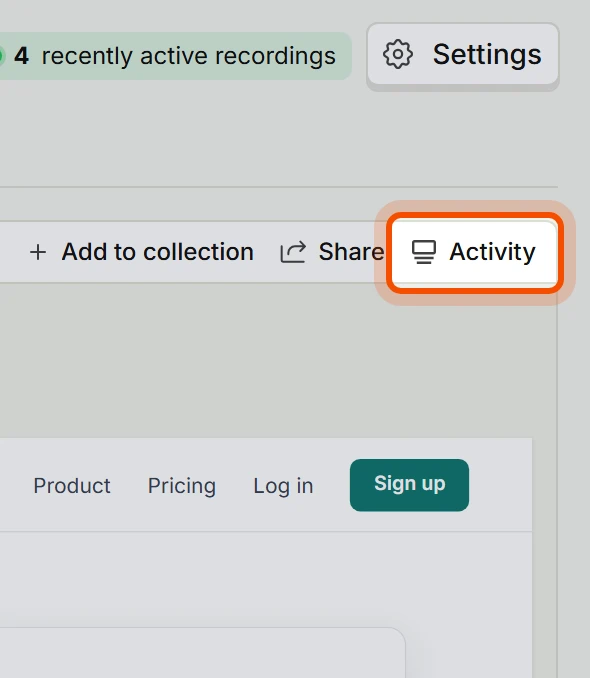
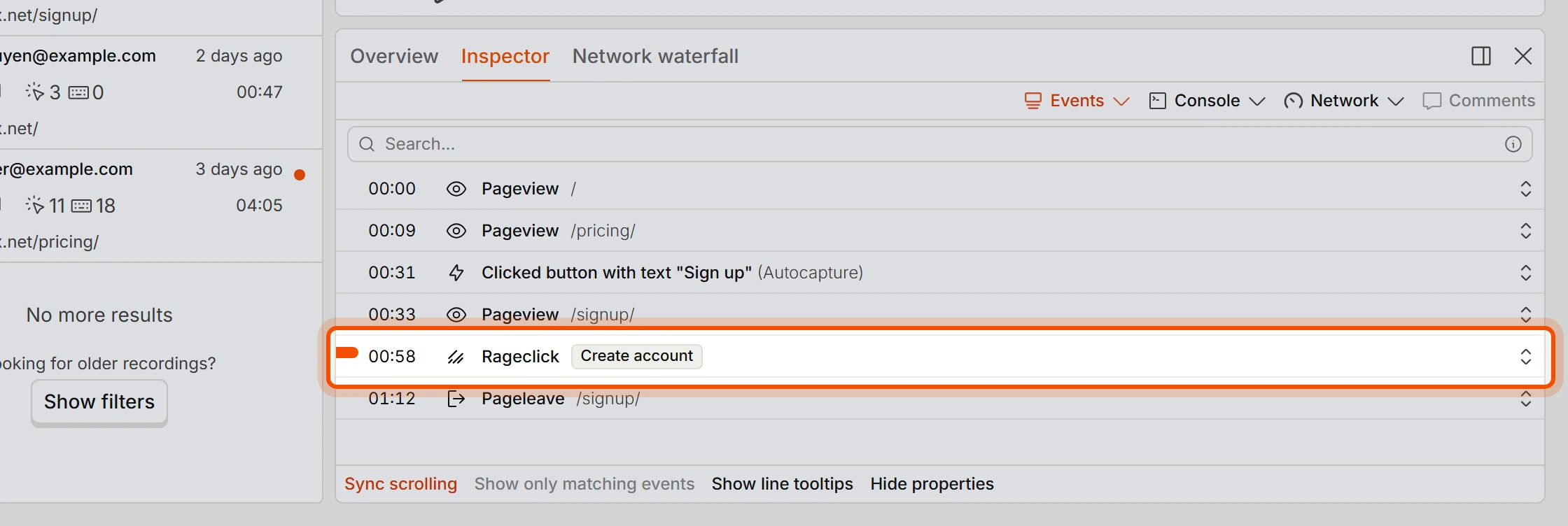
Click Activity in the player's top bar. A sidebar opens with the recording's events.
In the Inspector list, click the event that matters, such as a rage click on the signup page. Playback jumps to 1 second before it.
Click Add to collection in the player's top bar.
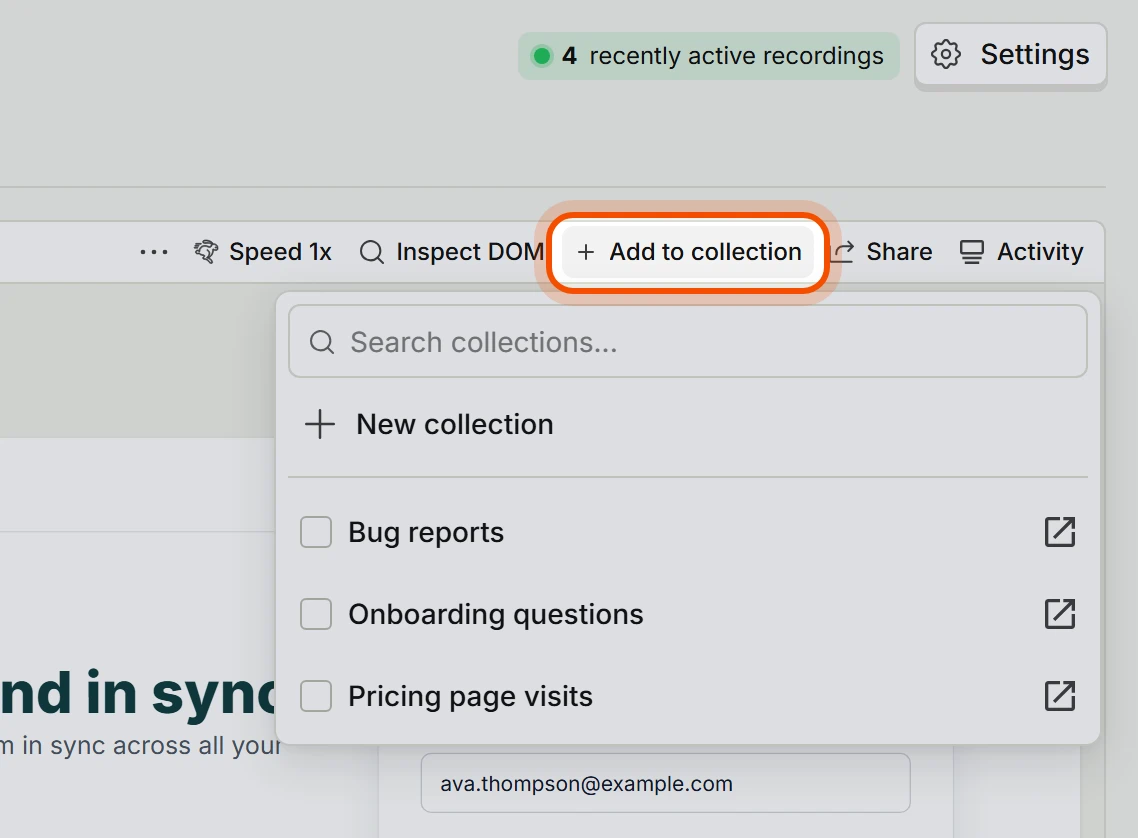
You need Editor access to add recordings to a collection.
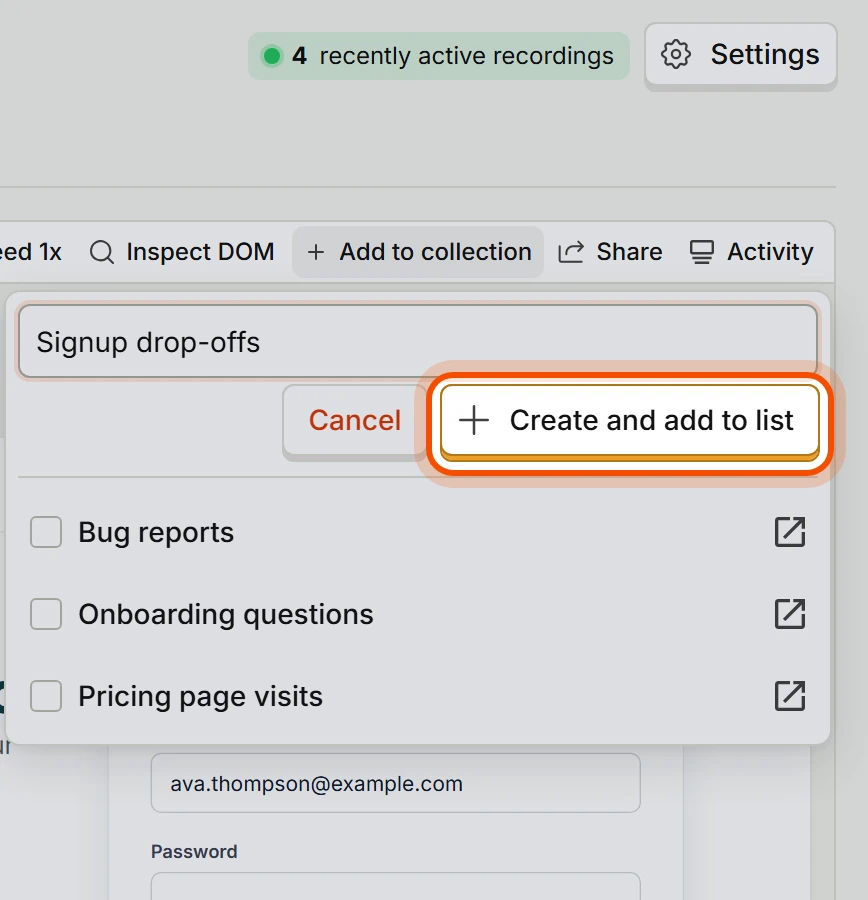
Click New collection.
Type a name, then click Create and add to list.
Open the next recording.
Click Add to collection, then tick the collection you made.
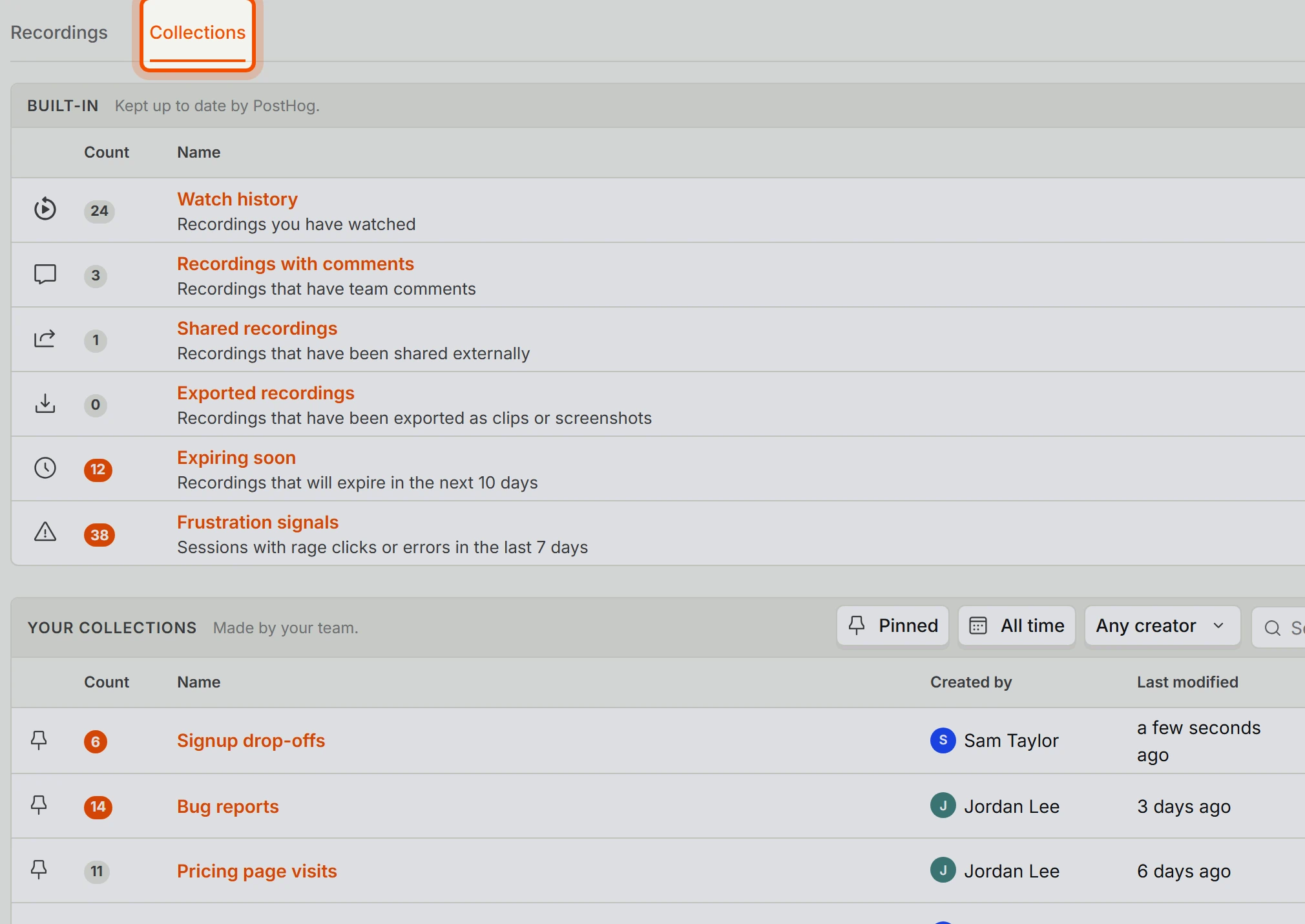
Click the Collections tab in Session replay to find the set again. Your team sees it there too.
Skip inactivity is on by default in the player's "…" menu, so quiet stretches play past on their own.
Saved filter or collection?
Saved filters
A search you can run again.
Picks up new recordings that match.
Doesn't keep this exact set of people.
Collections
A hand-picked list of recordings.
Stays the same until someone changes it.
The way to keep this set for your team.
Common problems
A person's View recording is greyed out. It says "No recording for this event". Sampling, the minimum duration or the retention period can leave a session without a recording. If no sessions are recorded at all, see Session replay not recording?
"Show only matching events" is greyed out. This list is filtered by sessions, not by events, so there are no event filters to match. Click the event you want in the Inspector list instead. Or open one person's recording with View recording in the list of people who dropped off.
There are fewer recordings than people. View recordings only includes the people loaded in the list so far. Click Load more persons first, then View recordings. Also check the funnel's date range, because the recordings come from the same range.
A saved filter shows different recordings. Saved filters don't keep the selected sessions. They run the search again on new recordings. To keep this exact set, add the recordings to a collection.
Watch it
Prefer to watch? The video From a drop-off to the replay that explains it (2:44) covers the same ground.
0:00 Find the drop-off
0:36 See who dropped off
0:58 Jump to their recordings
1:17 Watch only what matters
1:55 Keep the set for your team