Mobile SDK setup gotchas: React Native, Expo, Flutter, iOS and Android
Most mobile setup problems come from a few platform traps, so find your symptom here before you debug your own code.
Events show up late, or not while you test All mobile SDKs · Turn on debug mode while testing. See "Events show up late".
Screen tracking throws errors after upgrading to React Navigation v7 React Native · Turn off automatic screen capture and call
posthog.screen()yourself. See "React Navigation v7: screen tracking errors".Not sure whether to run
pod installReact Native on iOS, Expo · Only for the optional native plugin. See "React Native on iOS: pod install and Expo".No screen views at all Flutter · Add the
PosthogObserver. See "Flutter: no screen views".Session replay doesn't start Flutter · Set up the SDK manually. See "Flutter: manual setup for Session Replay and Surveys".
Screen views or replay missing iOS · Set up PostHog early and keep swizzling on. See "iOS: screen views and swizzling".
No recordings from the app All mobile SDKs · Turn on both the project switch and the SDK option. See "Mobile replay needs two switches".
No Application Opened events React Native, Flutter · Update the SDK or turn lifecycle events on. See "Lifecycle events on older SDKs".
Events aren't linked to the user All mobile SDKs · Call
identifyafter login. See "Identify after login".A
personProfileschange has no effect iOS, Android · It only reaches users who update the app. See "personProfiles changes need an app update".
Events show up late
Mobile SDKs queue events and send them in batches. You can configure how many events queue before flushing with flushAt. Setting this to 1 will send events immediately and will use more battery. The default is 20. On tvOS, the iOS SDK's default is 5.
Flushing is best-effort and asynchronous. While you test, turn on debug mode instead of lowering flushAt in production. Debug mode logs what the SDK does.
iOS:
``swift let config = PostHogConfig(projectToken: "<ph_project_token>", host: "<ph_client_api_host>") config.debug = true PostHogSDK.shared.setup(config) ``
Android:
``kotlin val config = PostHogAndroidConfig(apiKey = POSTHOG_API_KEY, host = POSTHOG_HOST).apply { debug = true // ... other config options } ``
Flutter:
``dart final config = PostHogConfig('<ph_project_token>'); config.host = '<ph_client_api_host>'; config.debug = true; await Posthog().setup(config); ``
React Native:
``jsx <PostHogProvider debug={true} apiKey="<ph_project_token>" options={{ host: "<ph_client_api_host>", }} > ``
Source: PostHog docs, libraries/_snippets/flush-intro.mdx, libraries/_snippets/flush-notes.mdx, libraries/ios/configuration.mdx, libraries/ios/usage.mdx, libraries/android/index.mdx, libraries/flutter/index.mdx, libraries/react-native/index.mdx
React Navigation v7: screen tracking errors
People often report the error "could not get the navigation state" here. React Navigation v7 restricts navigation hooks (such as useNavigationState) to components rendered inside a Screen that belongs to a Navigator. Because of this, automatic screen tracking may throw errors if PostHog is initialized outside a screen context. This commonly affects apps upgrading from React Navigation v6 to v7.
The fix: turn off automatic screen capture, then call posthog.screen() inside each screen component.
```jsx // App.(js|ts)
import { PostHogProvider } from 'posthog-react-native' import { NavigationContainer } from '@react-navigation/native'
// Using PostHogProvider is optional, but needed if you want to capture touch events automatically with the captureTouches option. export function App() { return ( <NavigationContainer> <PostHogProvider apiKey="<ph_project_token>" autocapture={{ captureScreens: false, // Screen events are handled differently for v7 and higher captureTouches: true, }}> {/* Rest of app */} </PostHogProvider> </NavigationContainer> ) } ```
``jsx const posthog = usePostHog() // use the usePostHog hook if using the PostHogProvider or your own custom posthog instance // you can read the params from getCurrentRoute() posthog.screen(currentRouteName, params) ``
As of the docs snapshot of 31 Oct 2026: with React Navigation v6 or lower, $screen events are captured automatically, because captureScreens is on by default in PostHogProvider. PostHogProvider must be a child of NavigationContainer.
Source: PostHog docs, libraries/react-native/index.mdx, integrate/send-events/_snippets/send-events-react-native.mdx
React Native on iOS: pod install and Expo
The core posthog-react-native install doesn't need pod install. You only need it for the optional @posthog/react-native-plugin, which adds native features such as session replay and native crash capture.
For React Native projects built with Expo, there are no mobile native dependencies outside of supported Expo packages.
For the plugin, use the standard CocoaPods flow:
``bash cd ios pod install ``
The plugin podspec adds posthog-ios as a CocoaPods dependency. You do not need to add posthog-ios separately.
As of the docs snapshot of 31 Oct 2026: the full Swift Package Manager path is verified only with React Native 0.87.1, @posthog/react-native-plugin 2.4.0 or later, Xcode 16 or later and iOS 15.1 or later. This verification does not cover Expo or other React Native versions. Use CocoaPods or the hybrid path unless you validate the full Swift Package Manager path for your configuration.
Source: PostHog docs, libraries/react-native/index.mdx, integrate/_snippets/install-react-native.mdx
Flutter: no screen views
Screen views aren't captured automatically. Add the PosthogObserver to your app yourself. Without it, your app sends no $screen events at all.
```dart import 'package:flutter/material.dart'; import 'package:posthog_flutter/posthog_flutter.dart';
void main() => runApp(MyApp());
class MyApp extends StatelessWidget { @override Widget build(BuildContext context) { // If you're using session replay, PostHogWidget has to be the root, and MaterialApp must be the child. return MaterialApp( navigatorObservers: [ // The PosthogObserver records screen views automatically PosthogObserver(), ], ... ); } } ```
The observer works with any routing package, not just the plain Navigator API. Add the observer wherever your router takes navigator observers.
Source: PostHog docs, integrate/send-events/_snippets/send-events-flutter.mdx
Flutter: manual setup for Session Replay and Surveys
Setting PostHog up from AndroidManifest.xml and Info.plist alone works for events. For Session Replay and Surveys, you must set up the SDK manually by disabling the com.posthog.posthog.AUTO_INIT mode.
In android/app/src/main/AndroidManifest.xml:
``xml <manifest xmlns:android="http://schemas.android.com/apk/res/android" package="your.package.name"> <application> <!-- ... other configuration ... --> <meta-data android:name="com.posthog.posthog.AUTO_INIT" android:value="false" /> </application> </manifest> ``
In ios/Runner/Info.plist:
``xml <?xml version="1.0" encoding="UTF-8"?> <!DOCTYPE plist PUBLIC "-//Apple//DTD PLIST 1.0//EN" "http://www.apple.com/DTDs/PropertyList-1.0.dtd"> <plist version="1.0"> <dict> <!-- rest of your configuration --> <key>com.posthog.posthog.AUTO_INIT</key> <false/> </dict> </plist> ``
Then set PostHog up in Dart:
```dart import 'package:flutter/material.dart';
import 'package:posthog_flutter/posthog_flutter.dart';
Future<void> main() async { // init WidgetsFlutterBinding if not yet WidgetsFlutterBinding.ensureInitialized(); final config = PostHogConfig('<ph_project_token>'); config.debug = true; // captureApplicationLifecycleEvents is enabled by default since version 5.23.0 config.host = '<ph_client_api_host>'; await Posthog().setup(config); runApp(MyApp()); } ```
Either way, Android needs minSdkVersion 23 and iOS needs a minimum platform version of 13.0.
Source: PostHog docs, integrate/_snippets/install-flutter.mdx
iOS: screen views and swizzling
captureScreenViews is on by default. Because it uses method swizzling, PostHog recommends initializing the client as early as possible, before any screens are displayed. The best place is the Application delegate's applicationDidFinishLaunching method.
If you turn swizzling off, features that depend on it don't work, even when you turn them on in the config. For example, with config.sessionReplay = true and config.enableSwizzling = false, session replay is not enabled.
As of the docs snapshot of 31 Oct 2026: the enableSwizzling option exists since iOS SDK version 3.34.0.
Source: PostHog docs, libraries/ios/configuration.mdx
Mobile replay needs two switches
Mobile session replay is off until you turn it on in two places: in the project, and in the SDK.
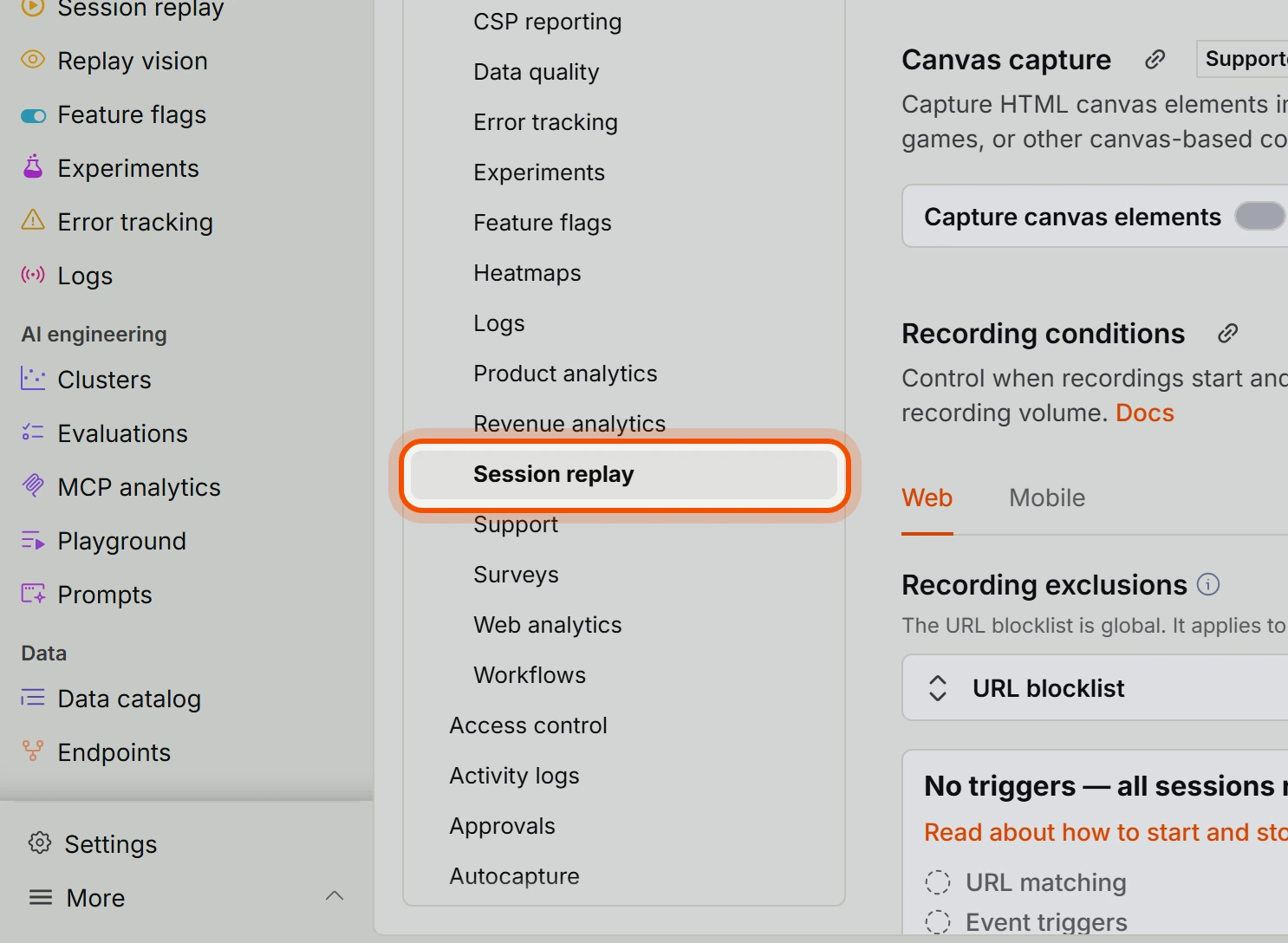
Click Settings in the left navigation.
Click Session replay.
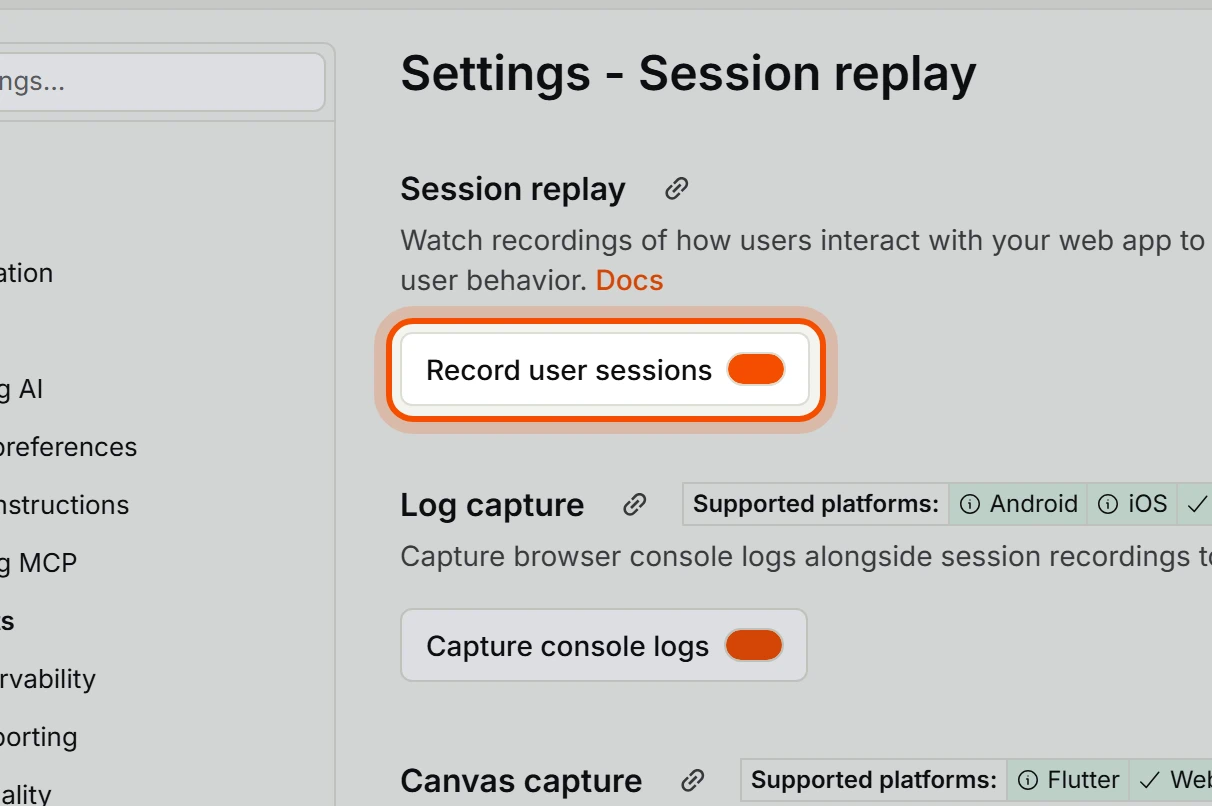
Turn on Record user sessions.
Turn on session replay in your SDK. It's off by default.
iOS:
config.sessionReplay = trueAndroid:
sessionReplay = trueFlutter:
config.sessionReplay = true. Flutter also needs the manual setup above.React Native:
enableSessionReplay: true. React Native also needs@posthog/react-native-plugin.
The Flutter option in the docs:
``dart final config = PostHogConfig('<ph_project_token>'); /// Enable recording of Session Replay for Android and iOS. /// Requires Record user sessions to be enabled in the PostHog Project Settings. /// Defaults to false. config.sessionReplay = true; ``
Wireframe mode is available in the native Android and iOS SDKs. React Native and Flutter always record in screenshot mode. Currently, this is not configurable.
A screenshot may contain sensitive information. Make sure you mask all relevant views.
As of the docs snapshot of 31 Oct 2026: the React Native configuration table names the option enableSessionReplay. One other docs page calls it sessionReplay. Check the option name for your SDK version.
For recording conditions, sampling and other replay checks, see the article "Session replay not recording? A checklist for web and mobile".
Source: PostHog docs, session-replay/_snippets/flutter-installation.mdx, session-replay/mobile.mdx, libraries/ios/configuration.mdx, libraries/android/index.mdx, libraries/flutter/index.mdx, libraries/react-native/index.mdx
Lifecycle events on older SDKs
Lifecycle events are on by default in current SDKs. React Native captures Application Installed, Application Updated, Application Opened, Application Became Active and Application Backgrounded. On native iOS and Android, captureApplicationLifecycleEvents is on by default. If you're on an older React Native or Flutter SDK, turn lifecycle events on yourself.
As of the docs snapshot of 31 Oct 2026:
React Native:
captureAppLifecycleEventsis on by default since version 4.39.0.Flutter:
captureApplicationLifecycleEvents(com.posthog.posthog.CAPTURE_APPLICATION_LIFECYCLE_EVENTSinAndroidManifest.xmlandInfo.plist) is on by default since version 5.23.0.
Source: PostHog docs, libraries/react-native/index.mdx, integrate/_snippets/install-flutter.mdx, libraries/ios/configuration.mdx, libraries/android/index.mdx
Identify after login
You should call identify as soon as you're able to. Typically, this is after your user logs in. In React Native:
``jsx posthog.identify('distinctID', { // ($set): email: 'user@example.com', name: 'Jane Doe' } ) ``
The other SDKs use PostHogSDK.shared.identify (iOS), PostHog.identify (Android) and Posthog().identify (Flutter).
Source: PostHog docs, libraries/react-native/_snippets/identify.mdx
personProfiles changes need an app update
When using PostHog's mobile SDKs, any changes made to personProfiles configuration will only apply to users who have updated their app to the latest version. This is because mobile SDKs are bundled with your app and cannot be updated dynamically.
The default is .identifiedOnly on iOS and PersonProfiles.IDENTIFIED_ONLY on Android.
Source: PostHog docs, data/anonymous-vs-identified-events.mdx, libraries/ios/configuration.mdx, libraries/android/index.mdx
Check it in PostHog
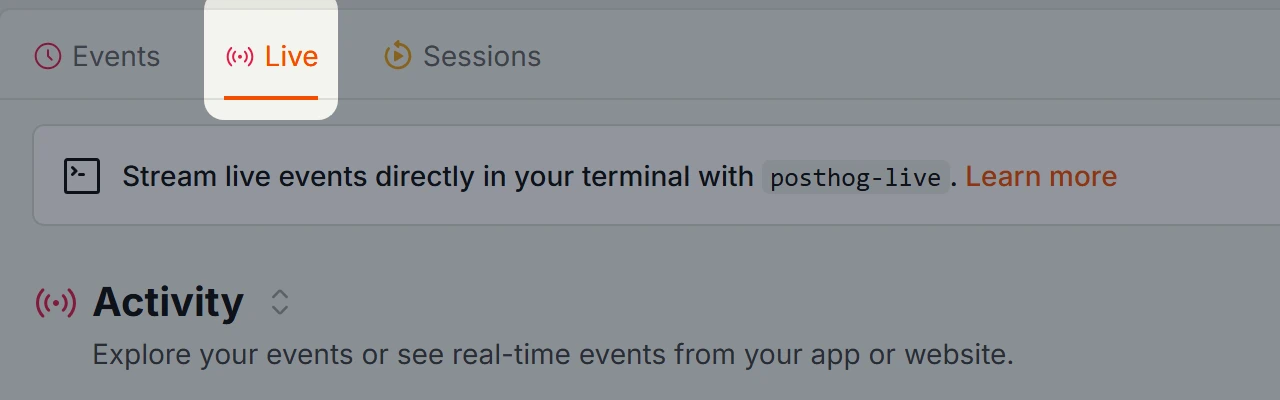
Click Activity in the left navigation.
Click the Live tab.
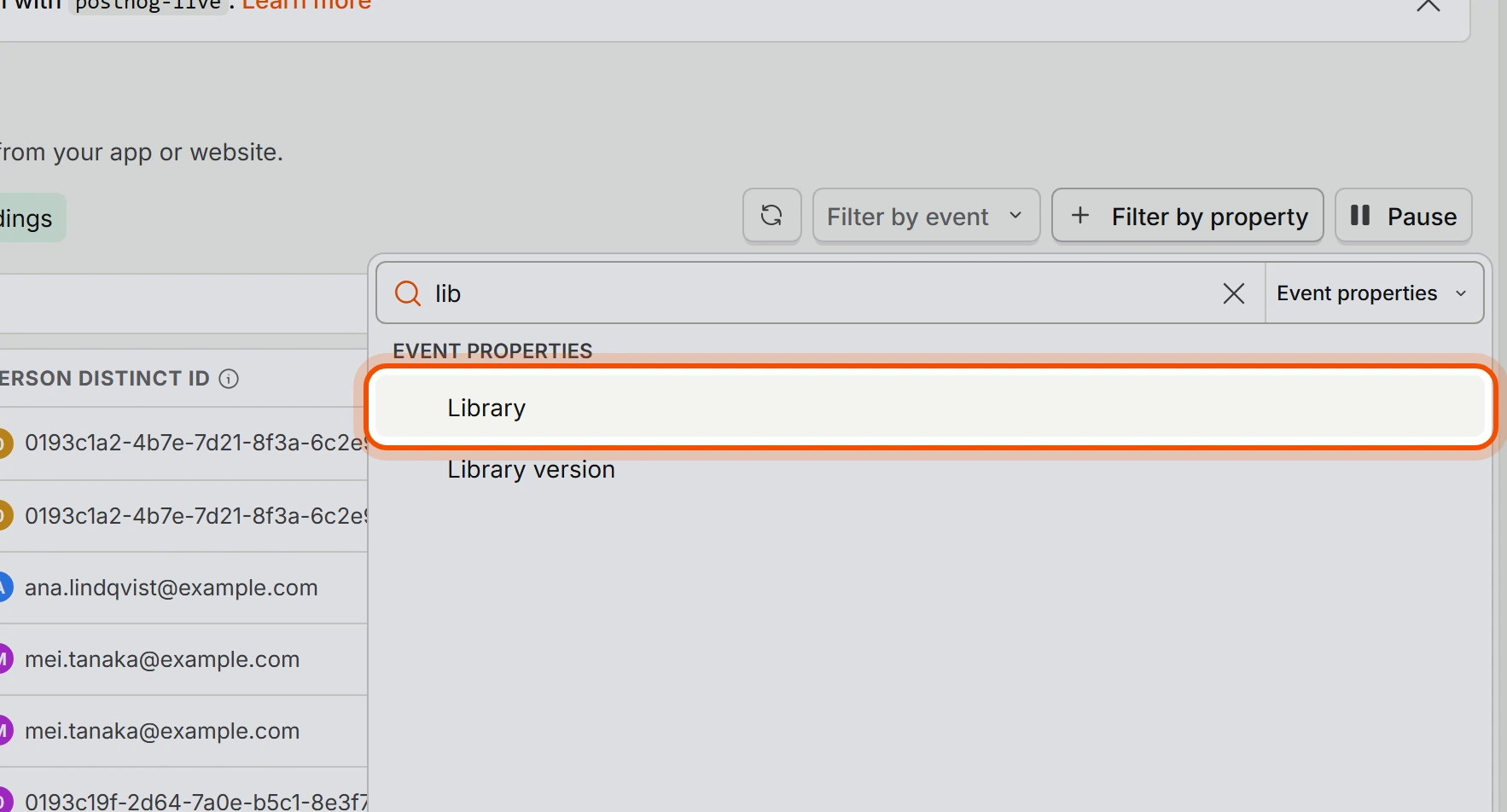
Click Filter by property.
Type "lib" and pick Library.
Enter your SDK's library value, for example
posthog-ios.Open your app and move between a few screens.
Check the table: each screen view shows as Screen, with the screen name under URL / Screen.
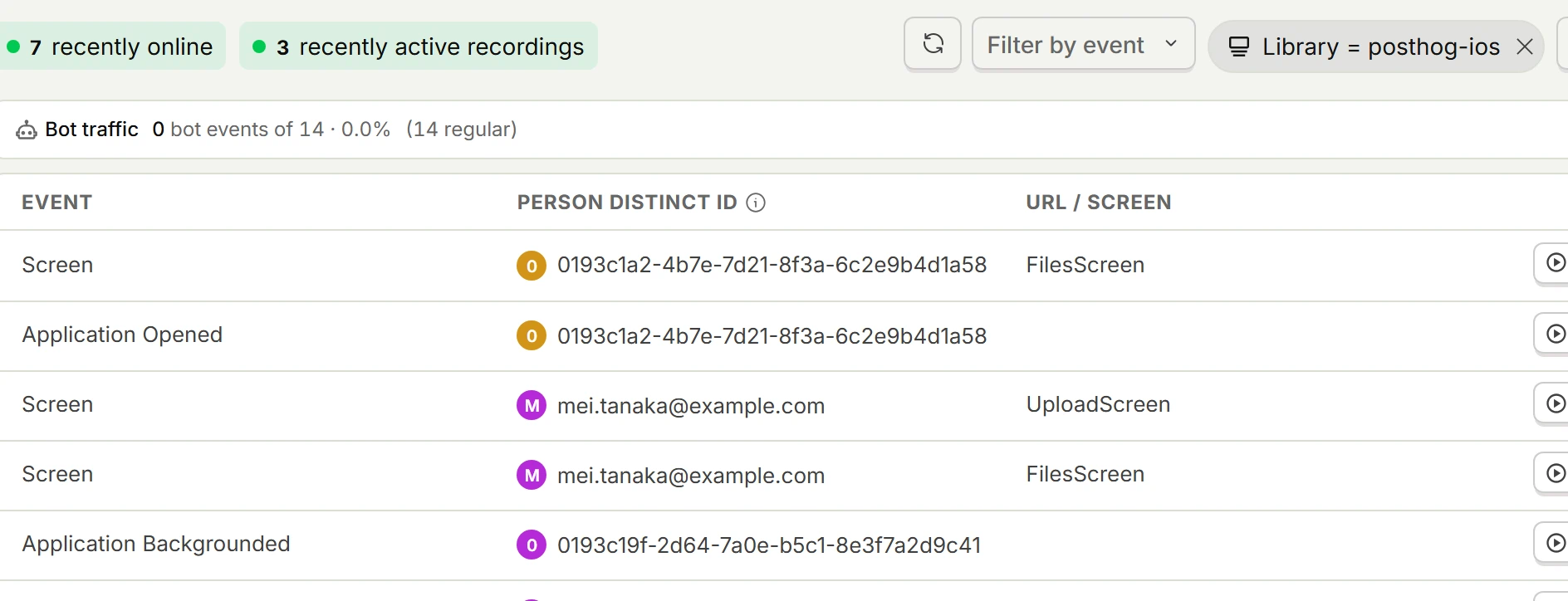
Mobile SDKs send events in batches, so new rows can take a moment to appear. Wait, or turn on debug mode while you test. Some rows may show no person profile yet. That's expected.