How PostHog counts visitors, sessions and bounce rate
Know exactly what each Web analytics number means, so you can trust it and explain why it differs from other tools.
The top of Web analytics shows five numbers: Visitors, Page views, Sessions, Session duration and Bounce rate. By default they cover the Last 7 days. Each tile is compared with the Previous period, and the "vs. … prior" line under the number shows that earlier figure.

What each number means
Visitors
One visitor is one person, not one device or browser. PostHog counts unique persons who sent a pageview or screen view with a session ID. If someone is identified on two devices, both merge into one person, so they count once.
Page views
Every pageview and screen view in the date range. One person can create many.
Sessions
Unique session IDs with at least one pageview or screen view. A session starts with the first event and ends after 30 minutes without activity.
Session duration
The time from a session's first event to its last event.
Bounce rate
The share of sessions that bounced. A bounce has one pageview, no clicks or other autocaptured interactions, and lasts less than the bounce rate duration, 10 seconds by default. A rise in bounce rate shows as a bad change.
The web SDK keeps the session ID in a cookie. To change the 30-minute timeout, set the posthog-js option session_idle_timeout_seconds. There is no setting for it in the app. With cookieless tracking, the server applies the same 30-minute rule.
Where your visitors come from
Each session gets one channel. PostHog works it out from the session's first (entry) UTM tags, click IDs and referring domain. Your own channel rules are checked first, in order. Then the built-in rules apply.
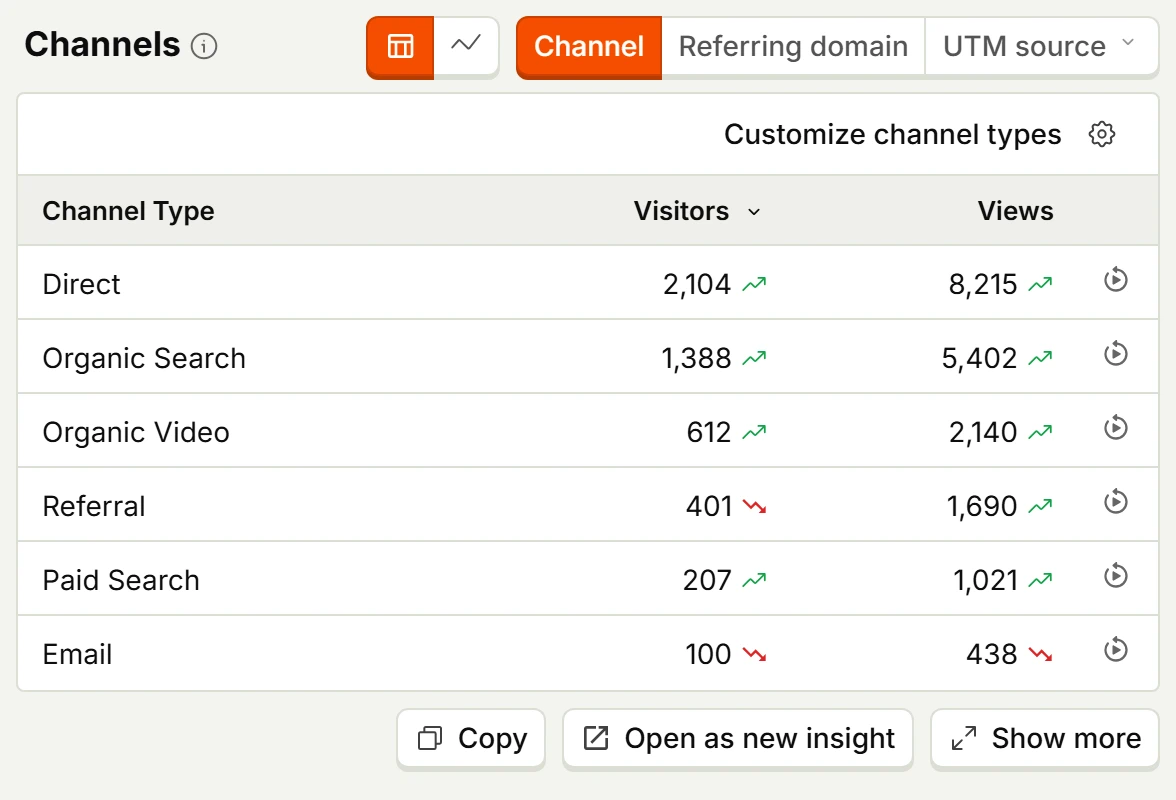
The built-in rules work like this:
Paid:
utm_mediumis cpc, cpm, cpv, cpa, ppc or retargeting, or starts with "paid". A URL withgclidorgad_sourcealso counts as paid. Paid sessions go to Paid Search, Paid Social, Paid Video, Paid Shopping or Paid Unknown.Direct: no referring domain, no
utm_mediumand noutm_source, or the source is "direct".Everything else is sorted by source, medium and referrer into Organic Search, Organic Social, Organic Video, Organic Shopping, Email, Push, SMS, Audio, Affiliate or AI.
Referral: any other referring site.
Cross Network: the campaign is "cross-network".
Unknown: nothing above matched.
The Channels tile has three tabs: Channel, Referring domain and UTM source. The UTM source menu also holds UTM medium, UTM campaign, UTM content and UTM term. The tile also has a Customize channel types link.
Add your own channel rules
Use your own rules when the built-in channels don't fit your campaigns. Open Settings and go to Web analytics, in the Products group.
Under Custom channel type, click Add rule.
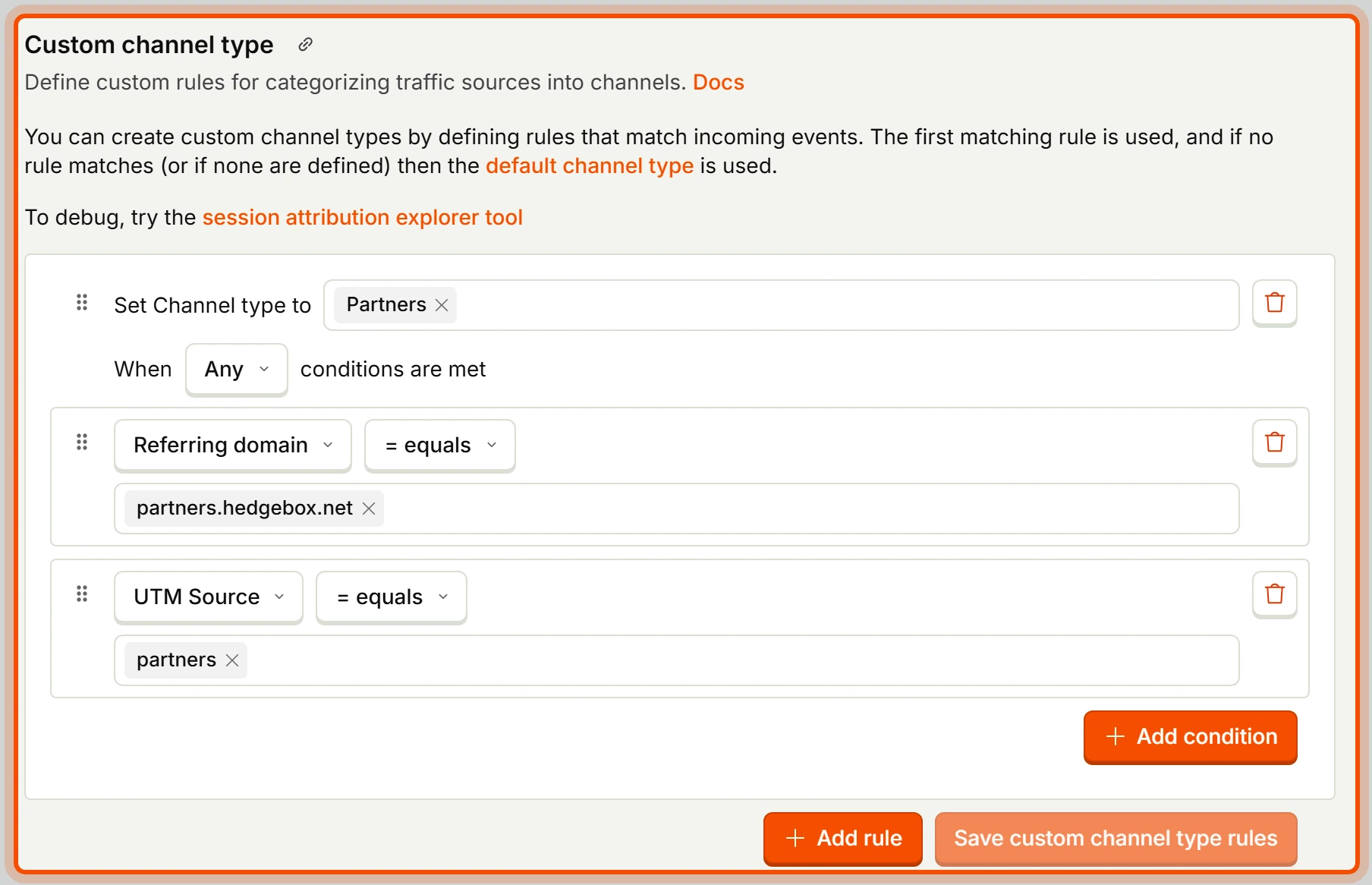
Enter the channel name after Set Channel type to.
Click Add condition, then choose what to match: Referring domain, UTM Source, UTM Medium, UTM Campaign, URL, Hostname or Pathname. If the rule has more than one condition, choose whether all or any of them must match.
Click Save custom channel type rules.
Change the bounce rate duration
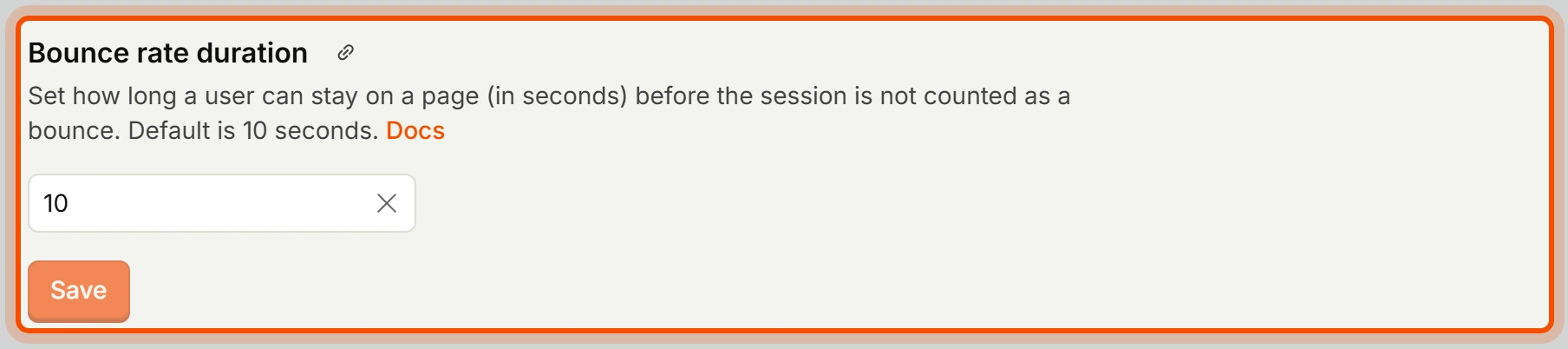
A session that lasts less than this time can count as a bounce. The default is 10 seconds. Only admins can change it. Open Settings and go to Web analytics, in the Products group.
Under Bounce rate duration, enter a number from 1 to 120 seconds, then click Save.
Track conversions
A conversion goal shows how many visitors did the thing you care about, such as signing up.
In Web analytics, click Conversion goal in the filter bar, then pick an action or a custom event.
Read the four new tiles: Visitors, Total conversions, Unique conversions and Conversion rate. Conversion rate is unique conversions divided by visitors. While a goal is set, the trends tile has the tabs Visitors, Unique conversions, Total conversions and Conversion rate. Views and Sessions go away while a goal is set.

Why your numbers differ from GA
Ad blockers hide some visitors
About 1 in 3 internet users have an ad blocker. When events are blocked, the overview warns that your counts may be underreported. Set up a reverse proxy to fix this.
People who decline cookies aren't counted
If PostHog only loads after consent, people who decline are not counted. To count them, use cookieless tracking. In Settings > Web analytics, turn on Enable cookieless tracking, then enable cookieless mode in posthog-js. It counts users with a privacy-preserving hash instead of cookies. The hash uses a daily salt, so one person on two different days can count as two visitors. These events don't get GeoIP or bot detection.
Bots are left out
The JavaScript SDK drops known bots before it sends events. If your own crawlers still show up, add them in Settings > Customization > Custom bots.
Test accounts are filtered out
The Filter test accounts switch at the top of Web analytics hides internal and test users. Turn it off to compare like for like.
The definitions are different
Visitors are persons, sessions end after 30 minutes without activity, and a bounce uses the 10-second rule. GA defines these differently. Compare trends, not exact totals.
The time zone is different
Days start and end at different times when the time zones don't match. In Settings > Customization, set Date & time to your GA property's time zone.
Watch it
Prefer to watch? The video Where your visitors come from (4:07) covers the same ground.
0:00 The dashboard
0:43 Where visitors come from
1:56 Which pages work
2:28 Conversion goals
3:04 How visits are counted
3:48 Go deeper