What counts as billable, and how to cap it
A billing limit and a few capture settings keep surprises off your bill.
Your bill is built from what each product uses in the billing period. You can see it grow on the Billing & usage page, cap it per product, and send less data in the first place.
What you're billed for
Each product is billed on its own usage, and each product has its own free tier.
The bill is for your organization.
Prices and free allowances come from your plan, so the product cards show your plan's own numbers.
Identified events are billed as their own usage type, separate from events.
Check your bill
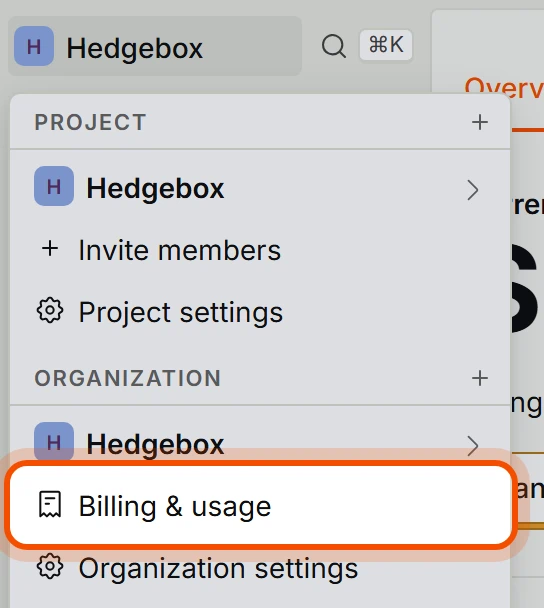
Click the project name at the top of the left navigation to open the account menu.
Under Organization, click Billing & usage.
On the Overview tab, read Current bill total and Projected total.
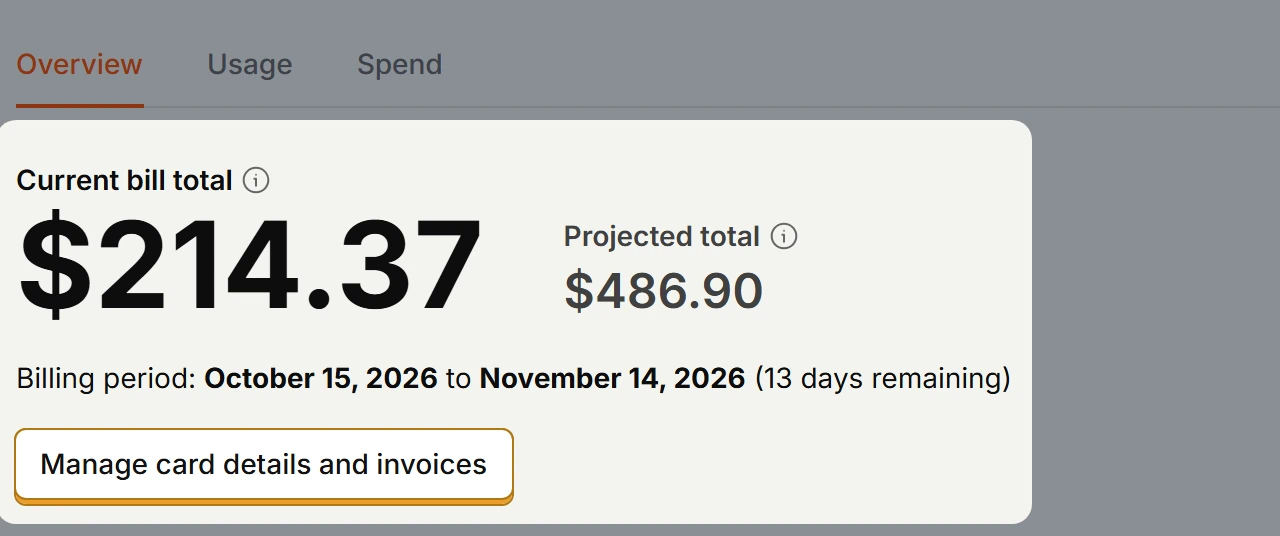
Current bill total is what you've been billed so far this billing period. Projected total is a rough estimate from your current bill and the time left in the period. Both update once a day, and the billing period line shows how many days are left.
Under Products, compare the markers on a product's bar: Current, Projected and Free tier limit. On the right, the card shows the Month-to-date and Projected amounts.

The bar turns red when usage reaches a limit. When a product has reached its limit, the card says "You have reached the billing limit for this product." or "You have reached the free tier limit for this product."
If a billing limit caps a product, its projection is capped at the limit too. PostHog never charges you more than your billing limit.
Set a billing limit
A billing limit caps what one product can cost you in a month. You set it on that product's card.
At the bottom of the product's card, under Billing limit, click Set a billing limit.

Enter the monthly amount in dollars, as a whole number.
Click Save.
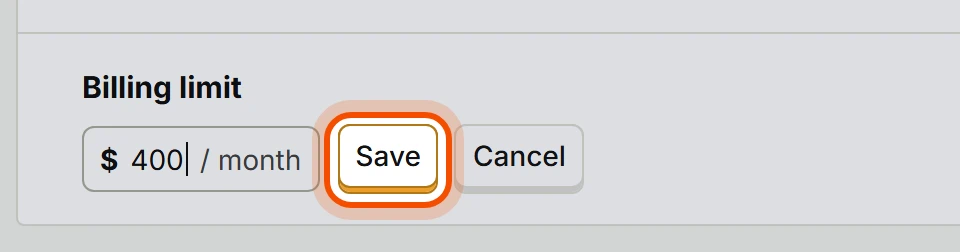
PostHog shows "Billing limits updated", and the card shows the limit you set.
To change a limit later, click "Edit limit" on the card. To take it off, click "Edit limit", then "Remove limit".
Some products start with a default limit. Their card says "This product has a default initial billing limit of" and the amount.
PostHog warns you in the app when you reach 80% of an allowance: "You will soon hit your usage limit".
When a limit is hit
PostHog shows a "Usage limit reached" banner in the app. While you're over the limit:
New events are dropped. They aren't stored and aren't billed.
New session recordings aren't stored.
Feature flags and experiments stop evaluating. Flag requests come back with no flags, so make sure your app falls back to a safe default for every flag.
Data warehouse sources stop syncing, and PostHog AI is unavailable.
Data dropped while you're over the limit can't be recovered.
Bring your usage down
Autocapture
With autocapture off, only the events you capture in code are sent. Only project admins can change it.
Click Settings at the bottom of the left navigation, then Autocapture in the settings menu.
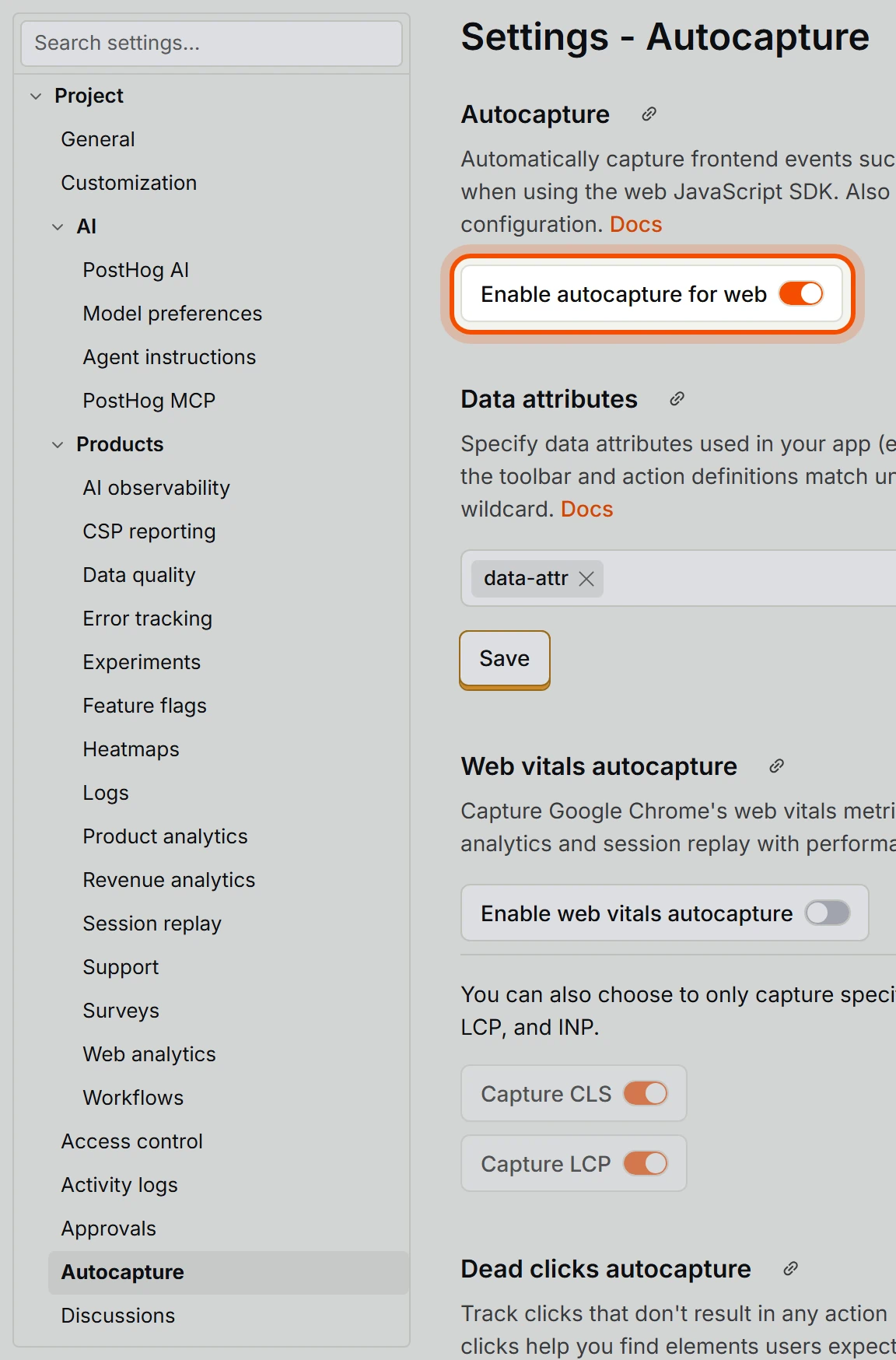
Turn off Enable autocapture for web.
Web vitals autocapture and dead clicks autocapture have their own switches here. Both are off by default.
Person profiles
Person profiles are set in your code, not in Settings. In the posthog-js init call, PostHog's install snippet uses person_profiles: 'identified_only'. The other choice, 'always', creates profiles for anonymous users as well.
With identified_only, events stay anonymous until you call identify, alias or group. From then on, that user's events are identified events. Identified events are their own line on the Spend tab, so sending fewer of them lowers that line.
Session replay
Record fewer sessions with a sample rate. These settings are in Settings too.
In the settings menu, click Session replay, then open the Sampling panel under Recording limits.
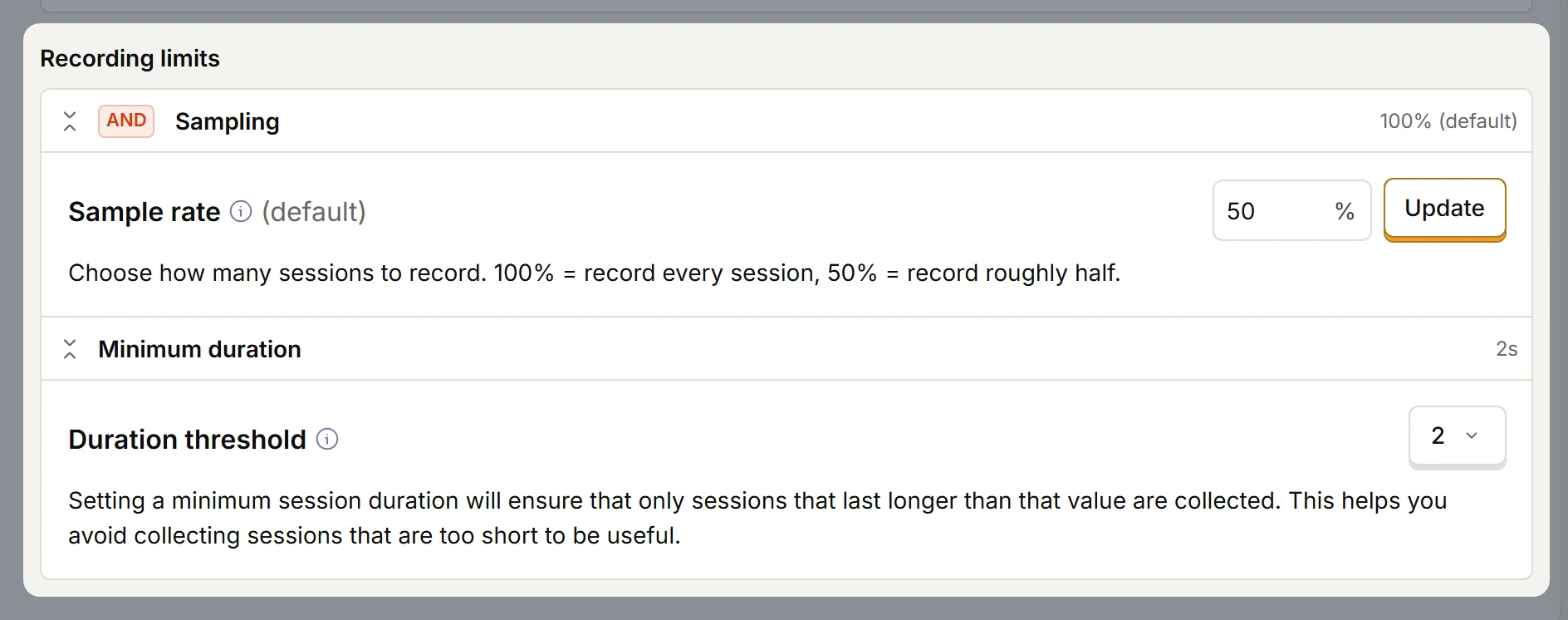
Set Sample rate to a number from 0 to 100.
Click Update.
At 100%, every session is recorded. This is the default. At 50%, roughly half are.
Skip very short sessions with a minimum duration.
Open the Minimum duration panel.
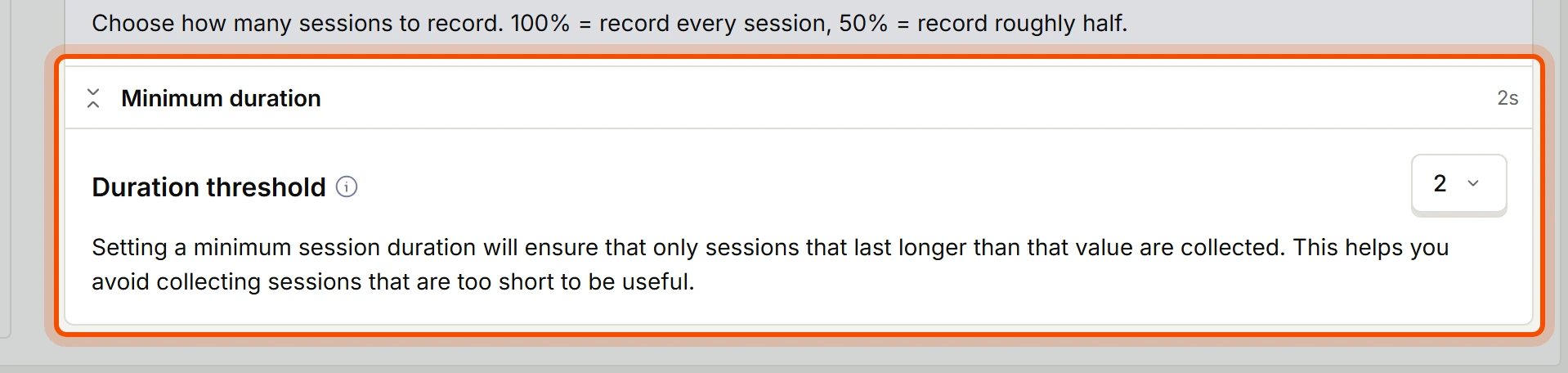
Choose a Duration threshold.
You can choose no minimum, or 1, 2, 5, 10, 15 or 30 seconds. Sessions shorter than the threshold aren't kept.
Common problems
A product's card has no Billing limit block. The block only appears for products you pay for on monthly billing. Products you don't pay for don't show it.
"Billing limit warning" opens when you save. Your new limit is below what you've used, or below what you're projected to use.
Below current usage: this period's limit is set to your current usage, so you aren't charged more. Your new, lower limit applies from the next billing period.
Below projected usage: usage will likely be throttled and data dropped before the period ends.
Click "Yes, I understand" to keep the limit, or "No, I changed my mind" to go back and change it.
"Please enter a whole number" or "Please enter a number less than 50,000". Enter the amount in whole dollars, with no cents, and keep it below 50,000.
Events, recordings or feature flags stopped working. The product has probably hit its billing limit. Look for the "Usage limit reached" banner and a red bar on the product's card. Raise or remove the limit on that card. Data dropped while you were over the limit can't be recovered.
The projected total didn't change after you changed a setting. The totals update once a day. Check again tomorrow.
You see an upgrade prompt instead of Sampling or Minimum duration. These are plan features, and your plan doesn't include them.
Watch it
Prefer to watch? The video Keep your PostHog bill predictable (3:51) covers the same ground.
0:00 Read your bill
0:56 Set a billing limit
1:57 Where volume comes from
2:49 Identified vs anonymous events
3:16 Get warned early